Office staff (HPV) and logins
This page explains the Admin → Office Staff screen. It is for SuperAdmin and GeneralAdmin users who manage all staff, and for LocationAdmin users who manage the health workers at their own sites.
“Office Staff” is the label on screen. Older parts of the system call the same records HPV, and the page address still ends in /admin/hpv. They are the same thing: one record per person who works a Prashan day, whether or not that person ever signs in.
The list
Section titled “The list”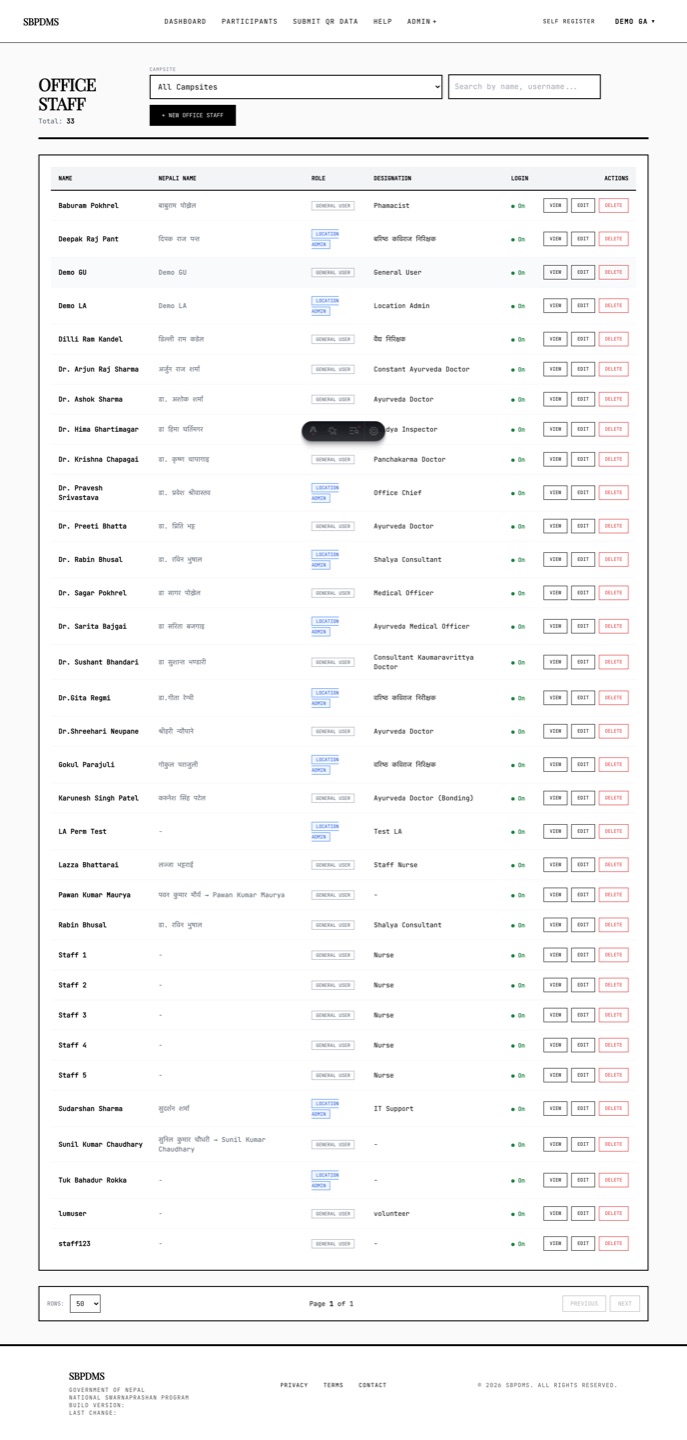 The Office Staff list. Name, role, designation, phone and whether login is on.
Open Admin → Office Staff. The heading reads Office Staff with a Total count.
| Column | What it shows |
|---|---|
| Name | Full name, in bold. |
| Nepali Name | Devanagari name, or a dash. |
| Role | A pill: Location Admin (blue) or General User (grey). |
| Designation | Free text such as Doctor, Nurse, or a dash. |
| Phone | Tap-to-call link on a phone, or a dash. |
| Login | Green On if the person can sign in, red Off if not. |
| Actions | View, Edit, Delete. |
Above the table:
- Campsite dropdown filters to staff assigned to one site. SuperAdmin and GeneralAdmin see All Campsites; a LocationAdmin sees All My Sites and only their own sites.
- Search by name, username… also matches Nepali name, designation and email.
What the list hides on purpose:
- SuperAdmin and GeneralAdmin accounts never appear here, not even to themselves.
- Staff marked Internal Reference are hidden.
- Deleted staff are hidden.
- A LocationAdmin sees only staff who share a site with them.
Creating a staff member
Section titled “Creating a staff member”- Click + New Office Staff. The form heading reads New Personnel.
- Fill Basic Information. Only Name is required. Nepali Name, Designation, Gender, Email Address, Phone and Address are optional but worth filling: the phone lets the office call the person when a camp day changes.
- Decide whether the person needs to sign in. If yes, tick Enable System Login and fill the fields it reveals (see below). If no, leave it off: the record still exists, can be assigned to sites, camp days and batches, and has a staff code for QR scans.
- Under Assign Primary Camp Sites, tick every site this person works at. A LocationAdmin sees only their own sites here and must tick at least one.
- Add Remarks if useful.
- Click the save button. You return to the list.
If a required rule is broken, a red message appears above the form. Common ones: the username is taken, or a LocationAdmin tried to create someone without a site.
Enable System Login, username and password
Section titled “Enable System Login, username and password”Ticking Enable System Login reveals:
- Username and Password. Both are required together. The username must be unique across all staff; spaces around it are trimmed. The password is stored hashed and never shown again.
- System Role. The roles you may pick depend on your own role (see the matrix below).
- Login Enabled. A green/red toggle, on by default. Turn it off to keep the account but block sign-in.
If the box is left unticked, the server clears any username and password, sets Login Enabled off, and stores the role as GeneralUser. In other words, a person without a login is always a GeneralUser.
Roles and who may create whom
Section titled “Roles and who may create whom”| Your role | Roles you can give a new staff member |
|---|---|
| SuperAdmin | General Admin, Location Admin, General User |
| GeneralAdmin | Location Admin, General User |
| LocationAdmin | General User only, and only at your own sites |
| GeneralUser | Cannot open the form (Access Restricted) |
Nobody can create a SuperAdmin from the screen. The first SuperAdmin is created when the system is installed.
The same rules apply when you change someone’s role in Edit. A LocationAdmin cannot change roles at all; the System Role field is greyed out for them.
Assigned camp sites
Section titled “Assigned camp sites”Assign Primary Camp Sites is a list of tick-boxes, one per site. Tick as many as needed. It saves together with the rest of the form; there is no separate save.
- For a LocationAdmin or GeneralUser, this list decides which children, camp days, batches and staff they can see. With no site they see nothing.
- For a GeneralAdmin the list has no effect, because they see everything anyway.
- The same assignment can be edited from the site side under Camp Sites → Add Office Staff. See Camp sites.
A LocationAdmin editing a GeneralUser can only add or remove their own sites. Sites managed by someone else stay as they were, and the last remaining site cannot be removed.
The staff code used in QR scanning
Section titled “The staff code used in QR scanning”Every staff member has a short Staff Code such as RAMA-4821 (four letters from the name, a dash, four digits). It is not typed on the form: the system generates a unique one when the record is saved and shows it to the person after they sign in.
The code is used on the QR pages. When a health worker scans a child’s QR card, the Your Staff Code field is filled from their login so the scan is linked to them. Matching ignores upper and lower case. A code belonging to a deleted staff member is refused.
Internal Reference flag
Section titled “Internal Reference flag”Tick Internal Reference (Hide from Listing) for accounts that should not appear as working staff: for example an office account used only for reports. Hidden staff do not show in the Office Staff list, in the personnel pickers on the dose preparation and camp day forms, or in the site assignment page. Their login still works. Leave it unticked for anyone who works a Prashan day.
Editing a staff member
Section titled “Editing a staff member”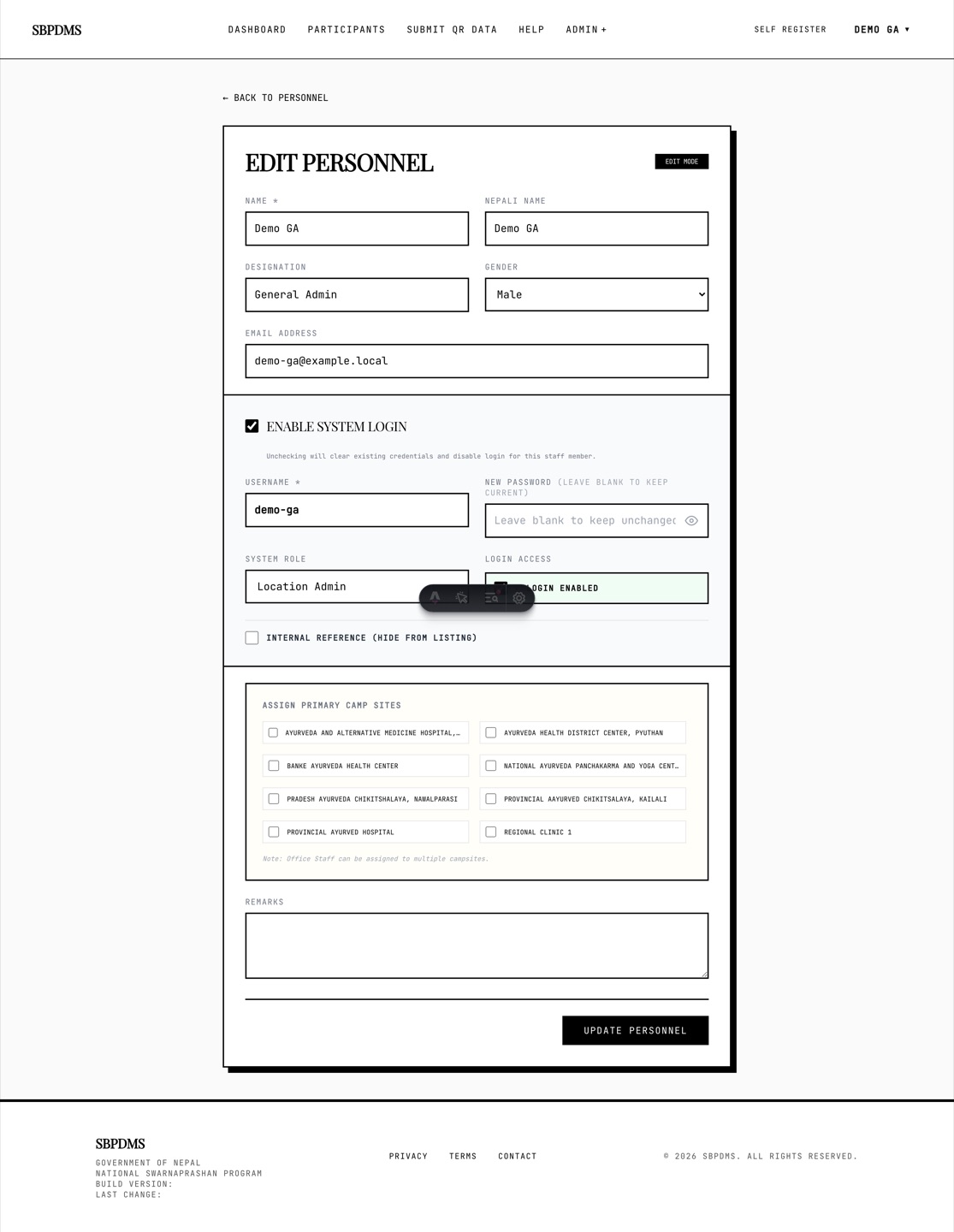 The edit form. Basic information, the Enable System Login block with username, password, role and Login Enabled, the Internal Reference tick-box, and the camp site tick-boxes.
Click Edit on a row. The form heading reads Edit Personnel with an Edit Mode badge. Change what you need and click Update Personnel.
Rules that apply on edit:
- A LocationAdmin cannot edit their own record. A blue Self-Update Restricted notice appears and the save button is disabled. Ask a SuperAdmin or GeneralAdmin.
- A LocationAdmin can only edit GeneralUsers who share a site with them.
- Only a SuperAdmin can promote someone to General Admin.
- A new username must not belong to anyone else.
Every edit is written to the audit log with the values before and after (the password is never logged).
Changing a password
Section titled “Changing a password”- Open Edit for the person.
- In New Password (leave blank to keep current), type the new password. Use the eye icon to check what you typed.
- Click Update Personnel.
Leaving the field blank keeps the old password. You do not need to know the old password. The person’s current session keeps working until their token expires (about an hour); their next sign-in needs the new password.
Disabling a login
Section titled “Disabling a login”You have two options:
- Login Enabled off. Keeps the username and password. The next sign-in attempt is refused with Your account has been disabled. Please contact an administrator. Turn it back on to restore access with the same password.
- Enable System Login unticked. Clears the username and password and sets the role to GeneralUser. To restore access later you must set a new username and password.
Neither option touches the person’s past work. Registrations, verifications, dose records and audit entries stay attached to their name. Their camp site and camp day assignments also stay.
Deleting a staff member
Section titled “Deleting a staff member”Click Delete on a row and confirm Delete this Office Staff?. This is a soft delete: the record is hidden, login is turned off, and the person is removed from every site and camp day assignment. Their history is kept, and reports still show their name on the work they did. Their staff code stops working for QR scans.
A LocationAdmin can only delete GeneralUsers at their own sites. Nobody can delete a SuperAdmin from the screen, and only a SuperAdmin can delete a GeneralAdmin.