Error pages and trace IDs
This page is for anyone who has hit an error screen or a red message and wants to know what it means and what to send to support. It applies to every role.
The two error pages
Section titled “The two error pages”SBDMS has its own styled error pages. Both keep the normal header and footer, so you can still reach Dashboard and Help from them.
Page not found (404)
Section titled “Page not found (404)”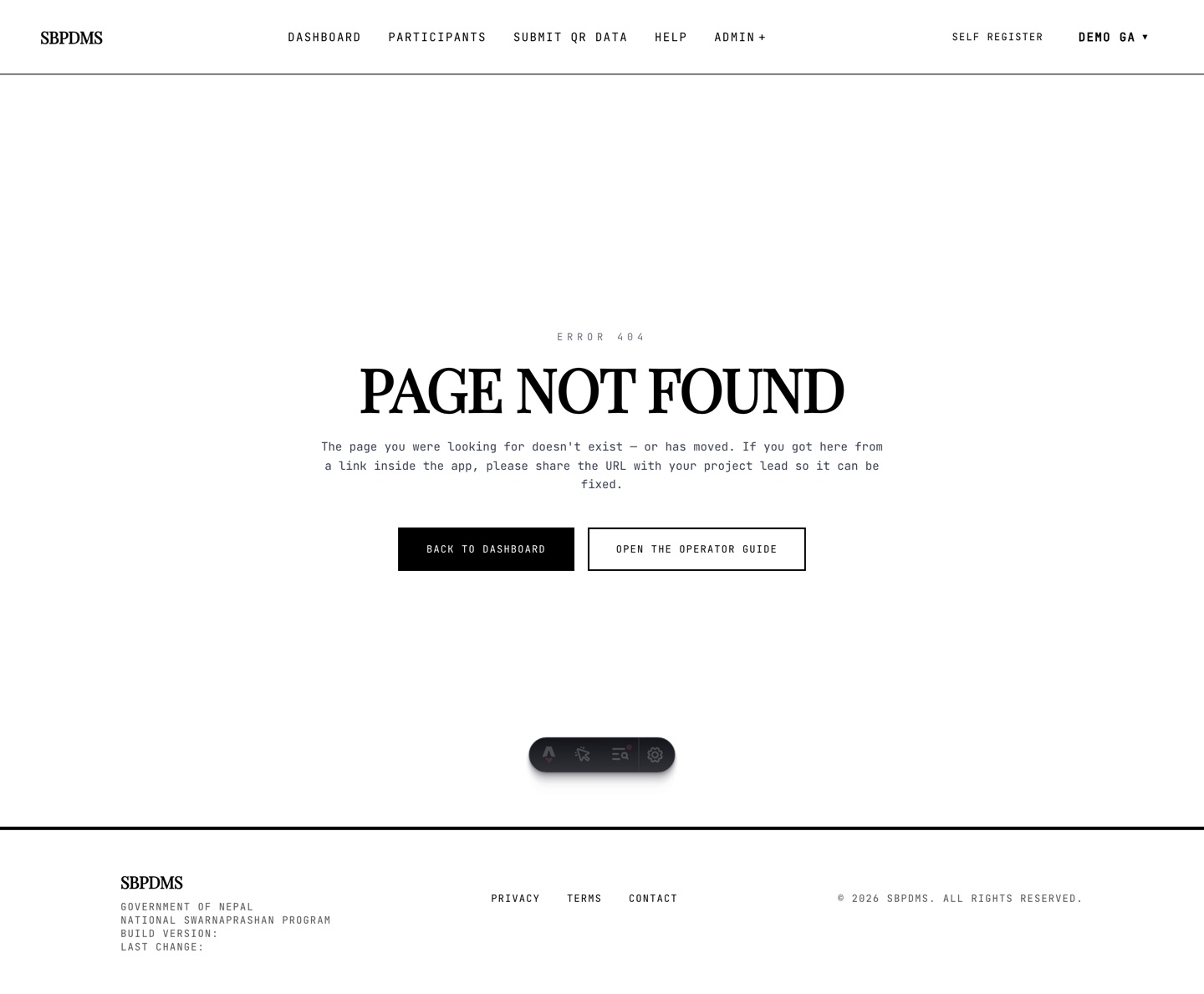 The 404 page. Two ways out: back to the dashboard, or open the operator guide.
You see this when the address does not match any page. The label at the top says Error 404 and the heading says PAGE NOT FOUND. Below it a short note asks you to share the address with your project lead if you got here from a link inside the app.
Two buttons:
- Back to dashboard takes you to your dashboard.
- Open the operator guide opens the in-app Help page.
Common reasons:
- A typo in the address bar.
- An old bookmark or a link from an old message.
- A child, guardian or camp day that was deleted.
- A record that exists but is outside your scope. LocationAdmin and GeneralUser accounts only see their own camp sites. The system shows “not found” rather than confirming that the record exists. Ask a GeneralAdmin if you think you should have access.
Something went wrong (500)
Section titled “Something went wrong (500)”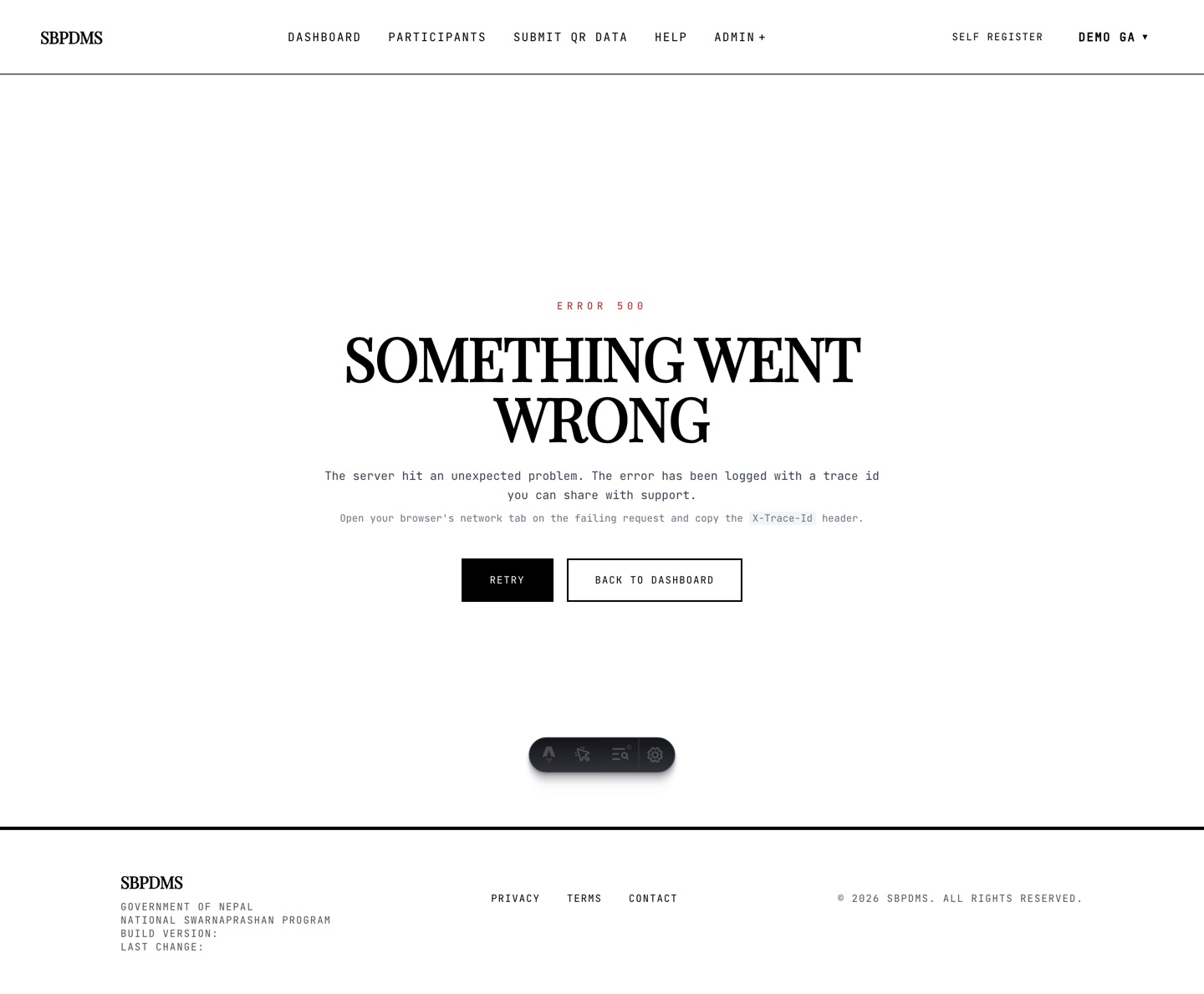 The 500 page. It tells you the error was logged with a trace id.
You see this rarely. It means the server hit a problem it did not expect. The label says Error 500 in red and the heading says SOMETHING WENT WRONG. The text says the error has been logged with a trace id you can share with support, and reminds you where to copy the X-Trace-Id header.
Two buttons:
- Retry reloads the same page. Try this once.
- Back to dashboard leaves the broken page.
If Retry shows the same error, collect the trace ID (below) and report it.
What a trace ID is
Section titled “What a trace ID is”Every request your browser sends to the server gets a unique code called the trace ID. It is a string of 32 letters and digits, for example 3f9a1c…. The server writes that code on every log line for that request, and sends it back to your browser in a response header named X-Trace-Id.
Why it matters: when you send the trace ID to the developers, they can open the server log and see exactly what went wrong for your request, at that second, with no guessing.
Where to find the trace ID
Section titled “Where to find the trace ID”The trace ID is not printed on screen. You copy it from your browser’s developer tools.
- Open developer tools. Press
F12on Windows, orCmd+Option+Ion a Mac. - Click the Network tab.
- Do the action that failed again, so the failing request appears in the list. Failed requests are usually red.
- Click that request.
- Open Headers, then Response Headers, and find
X-Trace-Id. - Copy the value.
What to send to support
Section titled “What to send to support”Send all of these if you can:
- The trace ID, if you found it.
- The date and time, Nepal time.
- The page you were on and what you clicked.
- The exact text of any red message.
- Your username and role.
- Your browser and device, for example “Chrome on Android phone”.
See Getting help for who to contact.
Toasts
Section titled “Toasts”A toast is a small message box that slides in at the top right of the screen. On a phone it appears across the top. Toasts are how the app tells you that something worked or failed without leaving the page.
| Kind | Look | How long | Example |
|---|---|---|---|
| Success | Green border, tick mark | 4 seconds | Saved. |
| Error | Red border, exclamation mark | 6 seconds | Delete failed: … |
| Info | Black border, letter i | 4 seconds | Child deleted. |
- Several toasts stack; the newest is at the bottom of the stack.
- Click anywhere on a toast, or its ×, to close it early.
- Toasts close on their own. If you missed one, repeat the action or check the record.
Error toasts usually show the server’s own message, such as Guardian phone must be a 10-digit number starting with 9. Read it; it normally tells you which field to fix. Common messages are listed in Common problems.
The “Working…” screen
Section titled “The “Working…” screen”When the app is waiting for the server, a white overlay with a spinning circle and the word Working… covers the page. It appears only if a request takes longer than a quarter of a second, so quick actions never show it. You cannot click anything until it goes away. If it stays for more than ten seconds, see Common problems.
Confirm dialogs
Section titled “Confirm dialogs”Before an action that is hard to undo, the app opens a confirm dialog: a white box with a black border, a title, a message and two buttons.
- The left button is Cancel. Nothing happens.
- The right button confirms. Its label matches the action, for example Delete or Confirm. For destructive actions the button is red.
- Press
Escto cancel. Clicking the dark area outside the box also cancels.
Only one confirm dialog opens at a time. If two actions ask at once, the second waits until you answer the first.
Some older pages, such as the camp day analytics page when marking screened children as dosed, use the browser’s plain confirm box instead. It works the same way: OK proceeds, Cancel stops.