Closing the day
When the last child has gone, the day is closed in two steps: check the numbers on the camp-day report, then mark the camp day Completed. This page is for site admins (LocationAdmin), GeneralAdmin and SuperAdmin. Health workers can read the report but cannot mark the day Completed.
Check the report first
Section titled “Check the report first”Open Admin → Camp Days and click Reports on the day’s row. The page is titled Camp Day Reports.
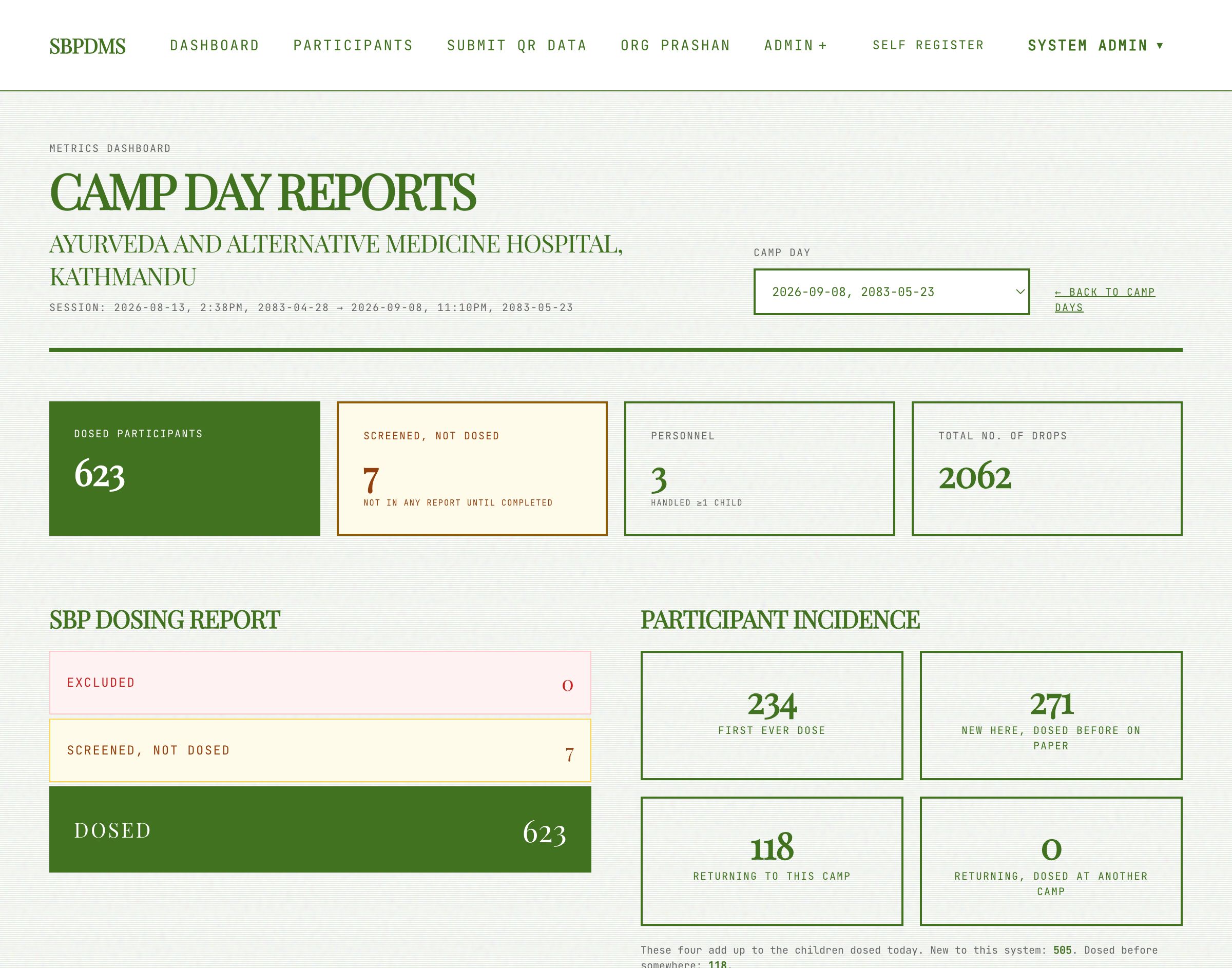 The camp-day report. Headline tiles at the top, then the funnel, then charts and tables.
Headline tiles
Section titled “Headline tiles”| Tile | What it counts |
|---|---|
| Dosed Participants | Sessions with status Completed on this camp day. |
| Screened, not dosed | Started sessions never completed. Amber when above zero. Should be 0 before you close the day. |
| Personnel | Staff who handled at least one child. |
| Total No. of Drops | Sum of drops given, using each child’s age on the day and the dose rules. Not the same as children, because a child may get 2 or 4 drops. |
SBP Dosing Report
Section titled “SBP Dosing Report”The funnel: Excluded, Screened, not dosed (only when above zero), Dosed. Excluded plus dosed plus screened-not-dosed is every child who was opened on the form that day.
Participant Incidence
Section titled “Participant Incidence”Four boxes that add up to Dosed: first dose ever, first dose on this system but dosed on paper before, returning to this site, and returning from another site. Under them, New to this system and Dosed before somewhere.
Screened but not dosed
Section titled “Screened but not dosed”The table of children with an open Started session and the Mark dosed buttons. How to use it is on Screened but not dosed.
Charts
Section titled “Charts”- Gender Ratio and Age Distribution (0-6 months, 6-12 months, 1-2, 2-3, 3-5 years, 5+), for dosed children only.
- Why Excluded: the exclusion criteria ticked on excluded sessions.
- Adverse Events: how many dosed sessions carried an adverse-event note, with the latest samples.
- Batch Usage — by Gender and Batch — Estimated vs Dosed: children per batch code, and the batch’s prepared quantity against the number of doses given from it.
- Children by Dose Iteration: how many children received their 1st, 2nd, 3rd dose and so on.
- Any Medical History and Medical History by Category.
- Nutritional Status — WHO BMI-for-age.
Catchment Area
Section titled “Catchment Area”A line Dosed here, preferred site elsewhere: N counts dosed children whose preferred site is not this camp site. These are the children who were brought up by exact UPC and confirmed through the Continue — dose here modal (see Finding the child). GeneralAdmin and SuperAdmin also see an Export audit list button, which downloads an Excel file with one row per child: name, UPC, preferred site, and who recorded the dose. Under it, a table of dosed children by District and Palika from the primary guardian’s address.
Fix the common gaps
Section titled “Fix the common gaps”Do this before marking the day Completed. All of these can still be fixed afterwards, but the report is the last thing people look at.
| What you see | What it means | Fix |
|---|---|---|
| Screened, not dosed is above zero | Children were screened and the drops were probably given, but Complete Dose was never pressed. | Confirm with the worker in Screened by, then Mark dosed. Details. |
| Dosed Participants lower than the paper tally | Some children were never opened on the form, or were dosed under a different camp day. | Check the Dashboard dropdown for a second camp day on the same date. Missing children can be entered as paper entries. |
| Batch — Estimated vs Dosed shows a batch with zero doses | The wrong batch was selected all day, or an unused batch was attached. | Nothing to change on the records if the drops really came from the other bottle; note it for the site admin. |
| Excluded is unexpectedly high | Workers ticked history items they thought were history but were exclusion criteria. | Review Why Excluded. Excluded sessions are locked; the children can be dosed on the next camp day. |
| Dosed here, preferred site elsewhere is high | Many families from another catchment came here. | Nothing to fix. Export the audit list if the office asks who they were. |
Mark the camp day Completed
Section titled “Mark the camp day Completed”- Go to Admin → Camp Days.
- Find the row. Its status badge is Scheduled or Ongoing.
- Tick Mark as Completed under the badge. The small print says once completed, no further edits.
- A dialog asks Mark this camp day as Completed? with the note Once completed, no further edits are allowed and only soft-delete remains available. Click confirm.
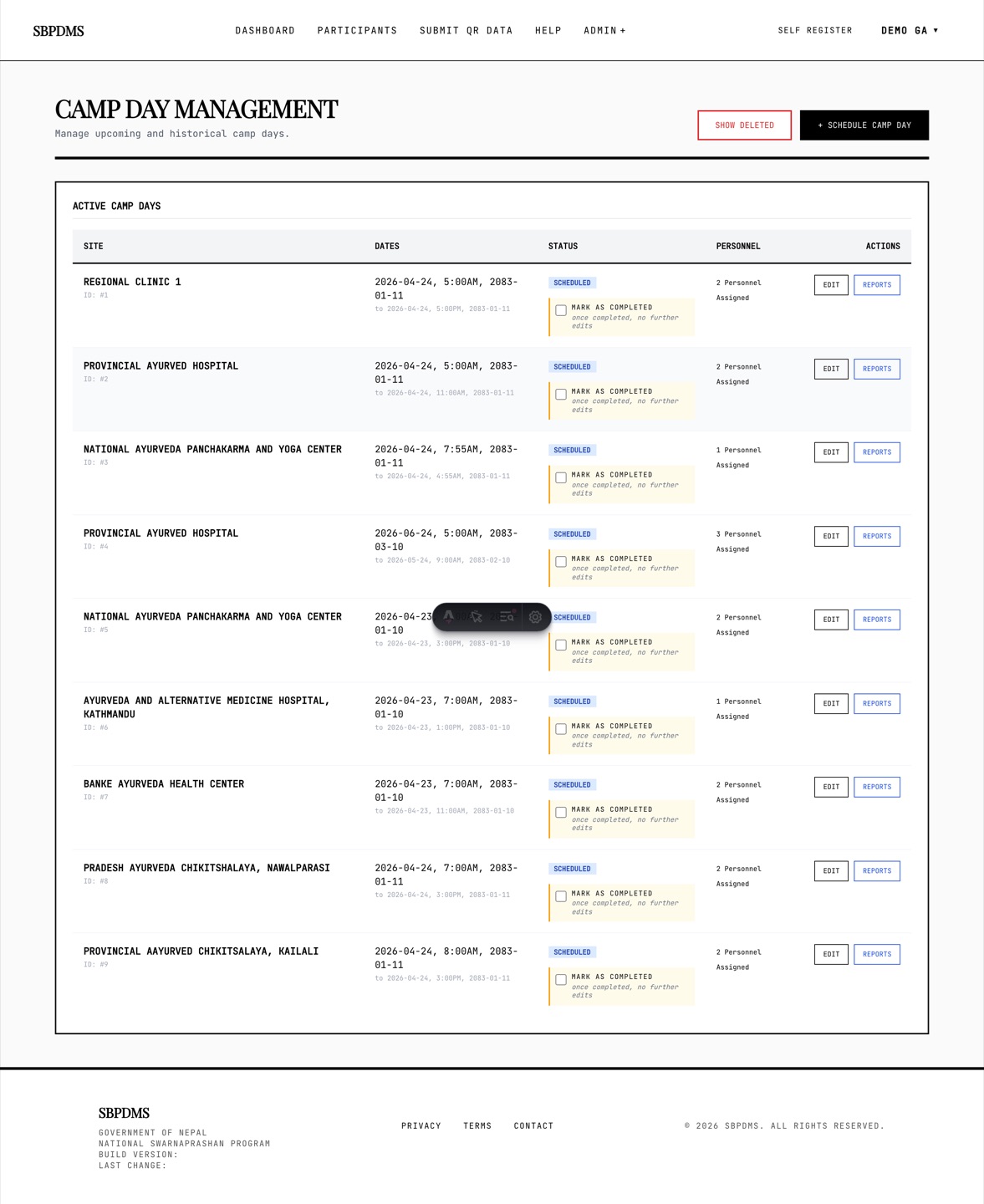 The Camp Days list. Each row has Edit or View, Reports, and the Mark as Completed tick for open days.
The status becomes Completed and is written to the audit log. After that:
- the camp day’s dates, batches and staff can no longer be edited (the row shows View instead of Edit);
- the day stays visible in the Dashboard dropdown and in reports;
- Reports still opens, and the Screened but not dosed table still works, so a missed child can still be marked dosed.
Marking the day Completed is a book-keeping step. The system does not use it to stop dosing, so make sure every worker has finished before you tick it.
Only LocationAdmin, GeneralAdmin and SuperAdmin see the tick. A Cancelled or already Completed day cannot be marked Completed again, and a Completed day cannot be reopened for editing.
Official reports
Section titled “Official reports”The camp-day report is for the site. The forms the programme submits are under Admin → Reports: Anusuchi-2 (the register of children with their dose history) and Anusuchi-3 (counts of new and repeat children by gender for a site and date range, including the same Screened, not dosed figure). They are described under Reports and analytics.
Back to A Prashan day, start to finish.