Getting help
This page is for anyone who is stuck and wants to know where to turn. It applies to every role, including parents.
Help yourself first
Section titled “Help yourself first”- Check Common problems. Most questions are answered by one line in that table.
- Read the red message on screen carefully. It usually names the field or rule that stopped you.
- Reload the page with
F5orCmd+R. If that does not help, log out and log in again. - Search this guide. The search box at the top of every page here searches every word.
The in-app Help page
Section titled “The in-app Help page”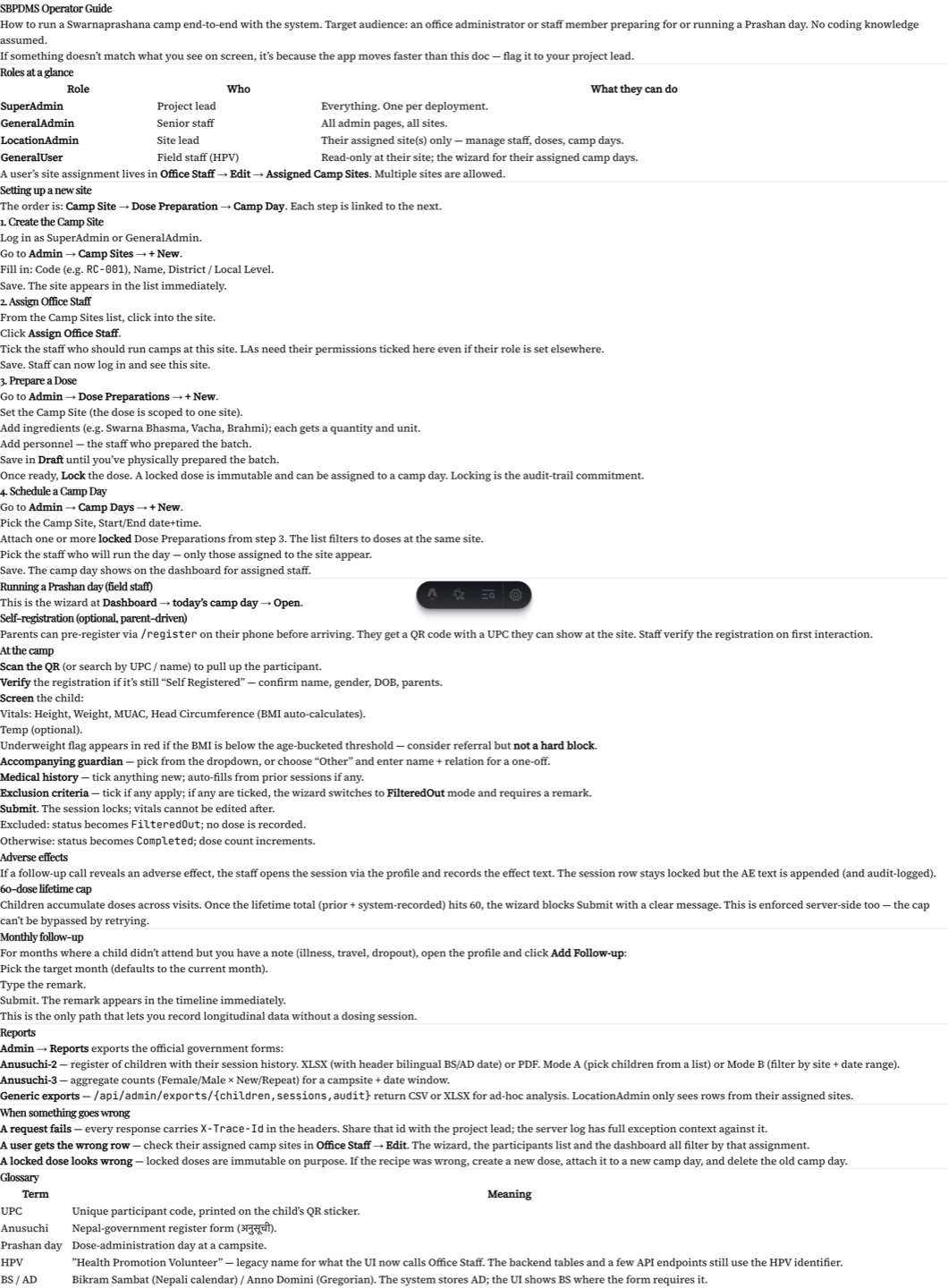 The Help page. It opens from the footer of any screen, even before you log in.
Every SBDMS page has a Help link in the footer. It opens the Operator Guide, a single long page with seven sections:
- Roles — what each role can do.
- Setting up a site — camp site, staff, dose batch, camp day, in order.
- Prashan day — the steps at the camp, the accompanying person, exclusion, the 60-dose cap.
- Monthly follow-up — adding a remark for a month with no visit.
- Reports — Anusuchi-2, Anusuchi-3, exports.
- When something goes wrong — the trace ID, wrong rows, a wrong locked batch.
- Glossary — UPC, Anusuchi, Prashan day, HPV, BS and AD.
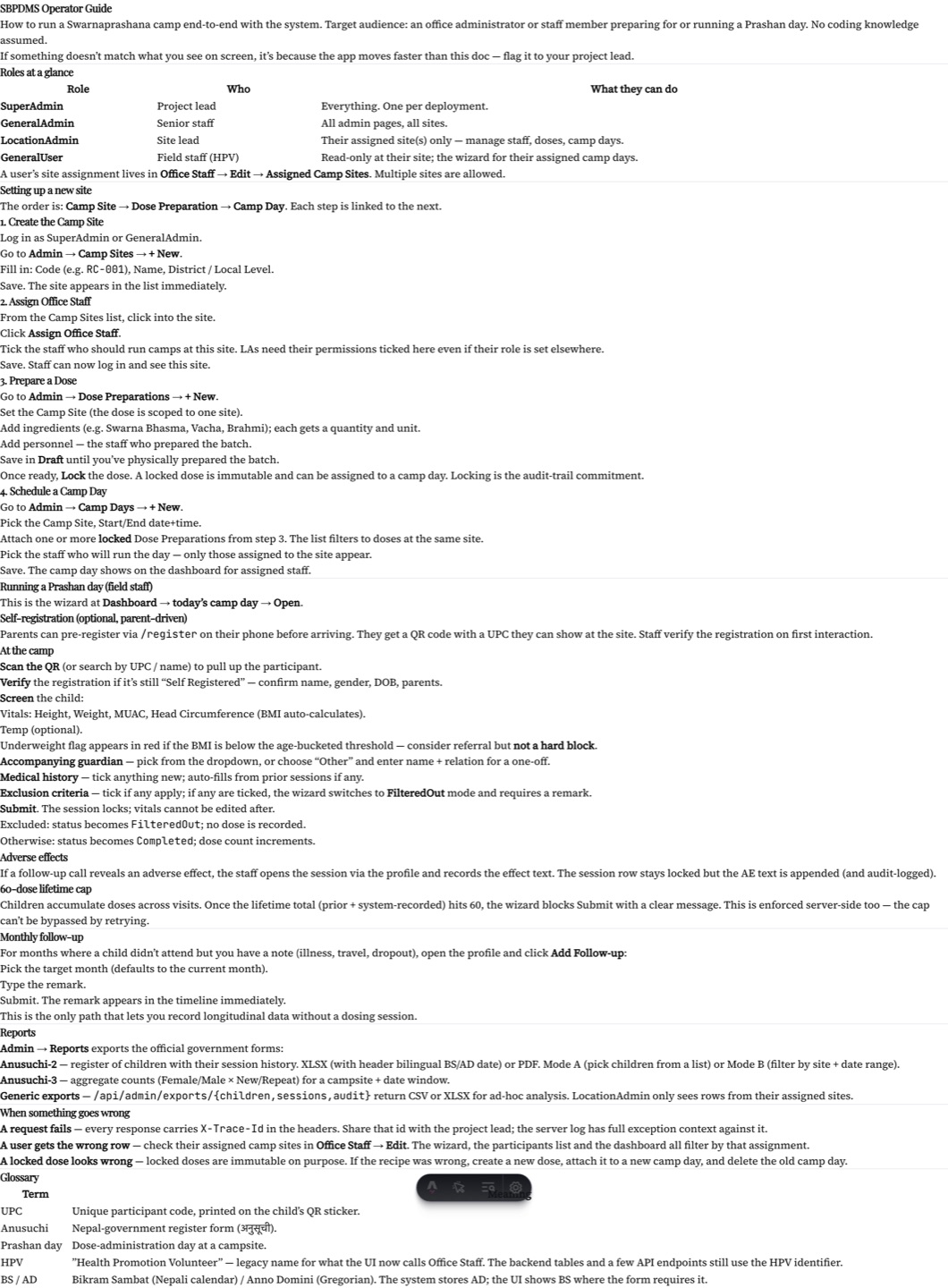 On a laptop the contents stay on the left while you scroll. On a phone they become a row of buttons at the top.
The Help page is the short version. This guide you are reading is the long version, with a page for every screen.
Who to contact
Section titled “Who to contact”| Problem | Contact |
|---|---|
| I cannot log in, forgot my password, or my account is disabled | A SuperAdmin or GeneralAdmin at the office. They reset passwords under Admin → Office Staff. |
| I cannot see a camp site, child or camp day I should | Your LocationAdmin, or a GeneralAdmin. Site assignment lives under Admin → Office Staff → Edit → Assigned Camp Sites. |
| A dose or record is wrong and is locked | Add a remark on the profile, then tell your LocationAdmin. |
| The site is down or very slow for everyone | The office. They check the server. |
| A page shows Something went wrong, or a button fails every time | The office, with the details below. They pass them to the developers. |
| Parents with questions about registration | Staff at the nearest camp, or the office phone. |
The company that maintains SBDMS is listed under Contact in the footer: Flywings IT Solutions, flywingsitsolutions@gmail.com. There is a copy button next to the address. Office staff use this for bugs and suggestions; parents should go through the office.
What to include in a report
Section titled “What to include in a report”The more of this you send, the faster the fix. Copy the list and fill it in.
- What you were doing. The page, and the button or field. For example: “Prashan page, clicked Submit on the screening form”.
- What happened. The exact text of the message. A screenshot is best.
- When. Date and time in Nepal time, to the minute.
- Who. Your username and role.
- Where. The camp site and camp day, if it matters.
- Trace ID. If you can, copy the
X-Trace-Idvalue. See Error pages and trace IDs. - Browser and device. For example “Chrome on a Samsung phone” or “Edge on the office laptop”.
- Build version. See below.
- Does it happen every time? And does it happen for a colleague too?
The footer build version
Section titled “The footer build version”At the bottom of every page, the footer shows two grey lines:
- Build Version: a seven-character code, such as
05476d7. It identifies the exact version of the app you are running. - Last Change: a short note about the latest change in that build.
Always include the build version in a report. Two people can see different behaviour because they are on different builds, and this line settles it in one glance. If the version differs between your device and a colleague’s, reload with Ctrl+Shift+R (or Cmd+Shift+R) to pick up the newest build.
For developers
Section titled “For developers”Technical readers should look at the For developers section of this guide, and at the runbook and branching notes in the code repository. End users do not need those pages.