QR cards and scanning
This page is for staff who print QR cards and use them on Prashan day, and for parents who want to know what the card is for. The QR card is a shortcut: it gets a child’s record on screen without typing.
What the QR card contains
Section titled “What the QR card contains”The QR code holds the person’s UPC (Unique Participant Code), such as QUQV-7135, and nothing else. Any phone camera or QR app can read it and will show that code as plain text.
Every child and every guardian has their own card. On screen the card shows just the QR and the words Scan QR Code. On paper it also carries the SBDMS title, the person’s name and the UPC written under the QR, so a printed sticker still makes sense without the screen.
Where to find a card
Section titled “Where to find a card”- Right after registration — the success screen shows a card for the guardian and each child. See Self-registration.
- On any profile — open the child or guardian on Participants and look for the black-bordered card in the left column (it stacks under the details on a phone).
Printing a card
Section titled “Printing a card”Below the QR on a profile is a Size dropdown and a Print button.
| Size | Best for | QR size on paper |
|---|---|---|
| Sticker 50×30 | A label stuck on the child’s paper card. Name and UPC sit beside the QR. | About 17 mm |
| A5 | A half sheet stapled into a booklet. | About 75 mm |
| A4 | A full sheet for a binder or a wall poster. | About 110 mm |
- Pick the size.
- Click Print. Your browser’s print dialog opens with only the card on the page; the rest of the profile is hidden.
- Check the paper size in the dialog matches your choice. The site sets it, but some printers ask you to confirm.
- Print. To test without wasting paper, choose Save as PDF as the destination.
The size you pick is remembered in this browser, so the next profile you open uses the same size. The registration success screen has the same Print Size dropdown and a Print All Codes button that prints every card in one go, one card per page or sticker.
If the QR area is blank, reload the page. The code is drawn in the browser when the profile loads.
Downloading a card
Section titled “Downloading a card”Next to Print is Download. It saves a PNG image (800 by 800 pixels) of the card with the title, name, QR and UPC, ready to send to a parent by message or to keep on a phone. The registration success screen has a Download button under each card as well.
Using a scan on Prashan day
Section titled “Using a scan on Prashan day”The Prashan-day page has two ways to bring up a child: Manual Search (type a name or UPC) and Digital Intake, which waits for a scan. Digital Intake is a two-step flow that uses two devices signed in as the same staff member: the computer running the Prashan page, and a phone used to scan.
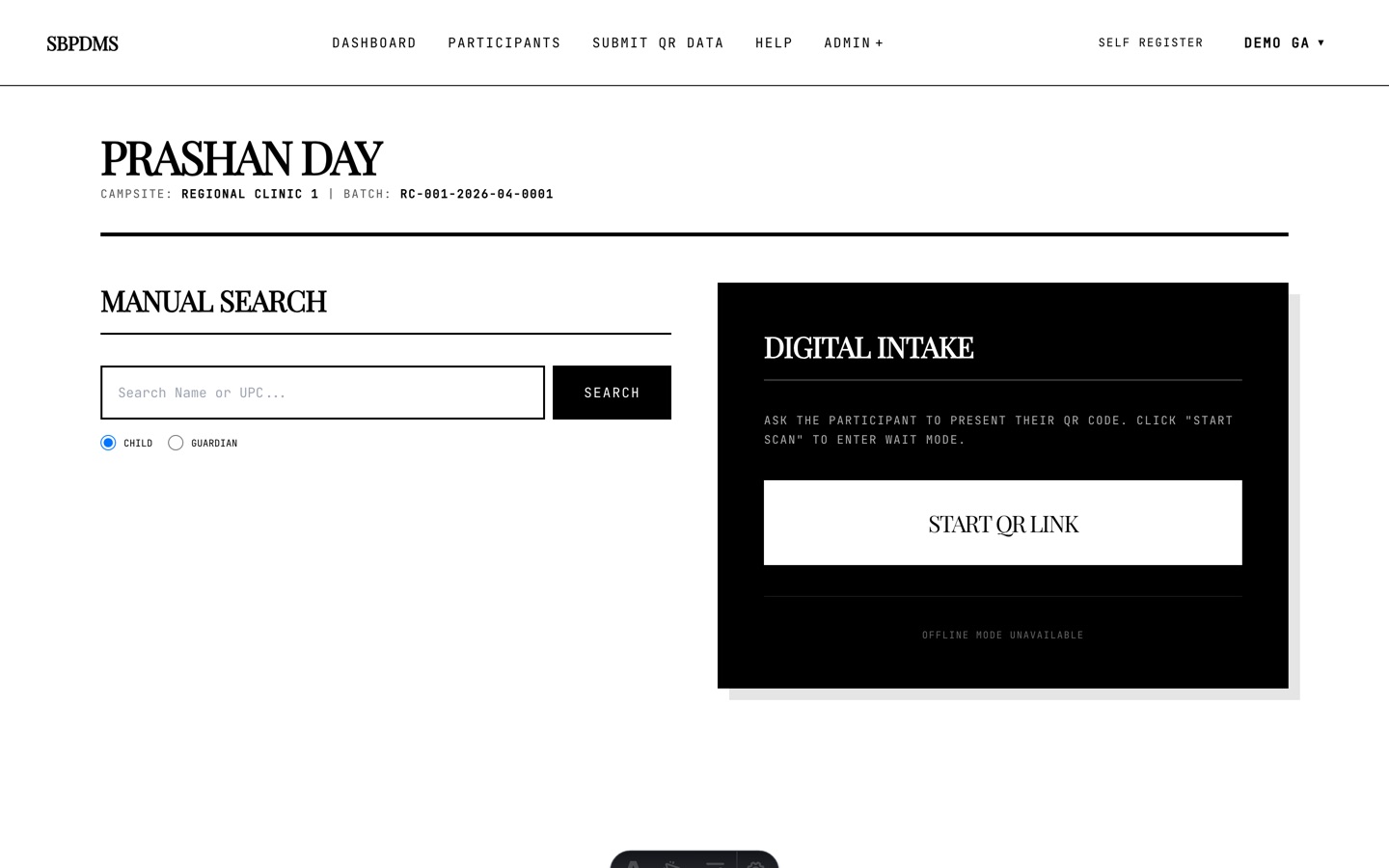 The Prashan-day landing page: Manual Search on the left, Digital Intake with Start QR Link on the right.
Step 1: the computer waits
Section titled “Step 1: the computer waits”- On the Prashan-day page click Start QR Link.
- The screen changes to Waiting for Scan with a countdown bar starting at five minutes and the words Status: Polling…. The page asks the server every five seconds whether a scan has arrived.
- Cancel Wait goes back to the intake screen at any time.
Step 2: the phone submits the scan
Section titled “Step 2: the phone submits the scan” The Submit QR Data page. Your staff code is filled in from your account; paste the UPC and submit.
- On a phone that is signed in with the same account, open Submit QR Data from the header menu.
- Your Staff Code is filled in from your account and cannot be edited. If it is empty, the page says so and asks you to sign in again.
- Scan the family’s card with the phone camera. The camera shows the UPC as text. Copy it.
- Paste it into UPC Code and click Submit QR Data. The page looks up the UPC, links it to your staff code and shows Success! QR Data Submitted. Click Submit Another for the next family.
Step 3: the child appears
Section titled “Step 3: the child appears”Within a few seconds the waiting computer picks up the scan and moves on by itself:
- A child card opens the child straight into the screening wizard, with their date of birth and prior-dose count already loaded.
- A guardian card opens Select Child, a list of that guardian’s children; click one, then Start VF →.
A scanned child that is still Self Registered stops at Registration Not Verified just as a searched one would; see Verifying a registration.
Time limits and the queue
Section titled “Time limits and the queue”- A submitted scan is valid for five minutes. After that the waiting computer will not pick it up, and the phone must submit it again.
- The Waiting for Scan screen also gives up after five minutes with the message QR Scan timed out. and returns to intake. Click Start QR Link again.
- Each scan is used once. When the computer picks it up, it is marked as used and will not appear a second time.
- If several scans are submitted while the computer is busy with one child, they wait on the server. When the health worker returns to intake and clicks Start QR Link again, the computer takes the newest unused, unexpired scan first. Submit one family at a time to keep the order simple.
Troubleshooting
Section titled “Troubleshooting”| Problem | What to check |
|---|---|
| Unknown staff code. Please check and try again. | The account on the phone is not an active staff account. Sign in again on the phone. |
| Your staff code isn’t available in this browser session. | The phone signed in before the code was added to the account. Use sign in again on that page. |
| No participant found for that UPC code. | The code was copied wrongly. Compare the four letters and four digits with the card. |
| Phone says Success, computer does nothing | The computer is not on Waiting for Scan, or the two devices are signed in as different people. Both must use the same account. |
| Scan arrived after the five-minute wait ended | Click Start QR Link again; if the scan is older than five minutes, submit it again from the phone. |
| Camera cannot read the card | The print is too small or smudged. Reprint at A5, or type the UPC. |