Camp sites
This page explains the Admin → Camp Sites screen. It is for SuperAdmin and GeneralAdmin users who set up sites, and for LocationAdmin users who want to understand what their site record controls.
Why camp sites matter
Section titled “Why camp sites matter”A camp site is the physical place where a Prashan day happens: a hospital, a health post, a school hall. It is the unit that scopes everything else:
- A LocationAdmin or GeneralUser only sees children, camp days, batches and staff at the sites they are assigned to.
- A dose batch is made for one site and can only be locked to a camp day at that site.
- A camp day is scheduled at one site.
- A child is registered with a preferred site. The verification and dosing screens warn when a child turns up at a different site.
Set up the camp site first. Nothing else can be created without it.
The list
Section titled “The list”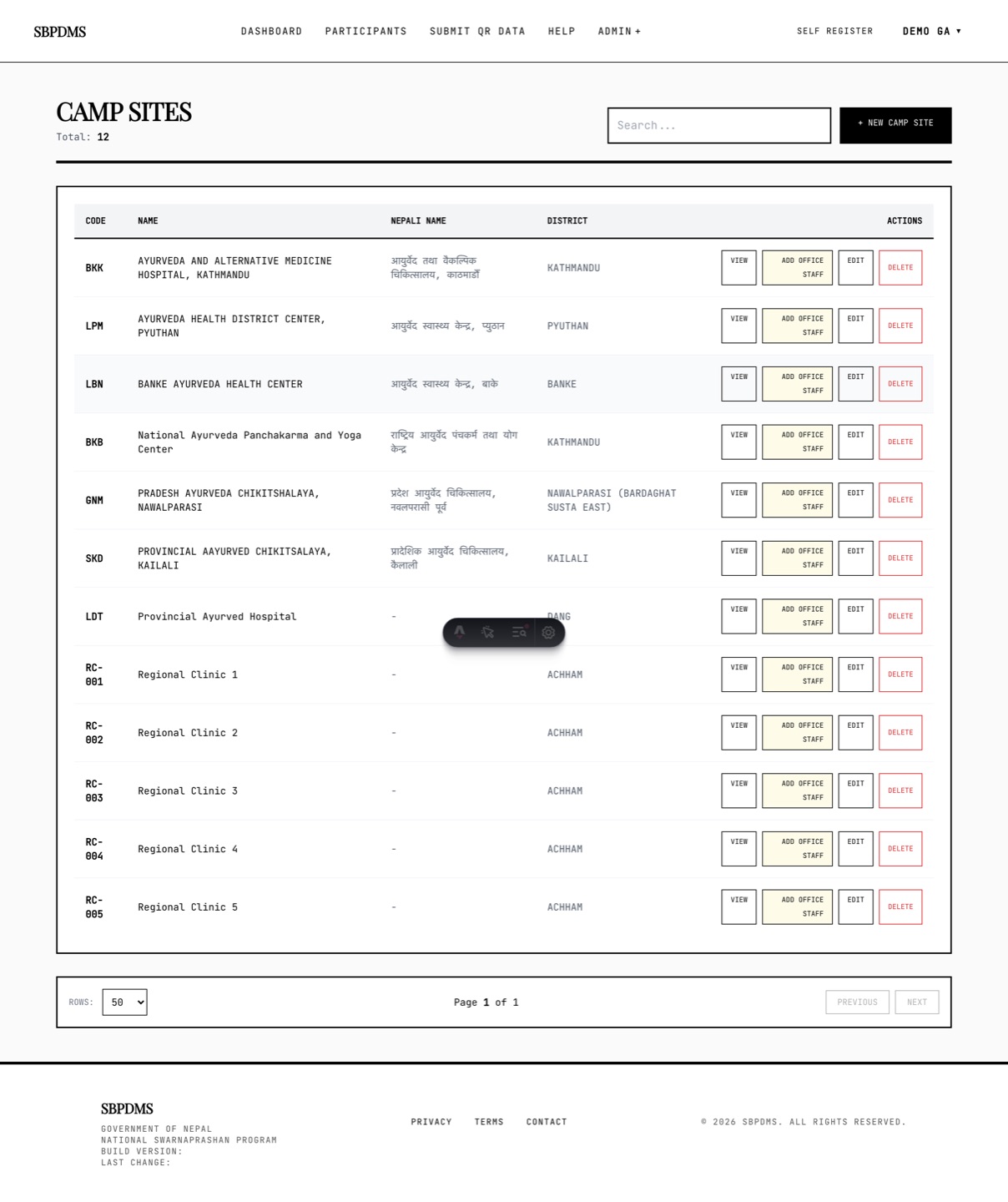 The Camp Sites list. Code, name, Nepali name, district and the row actions.
Open Admin → Camp Sites. The heading reads Camp Sites with a Total count. The Search box matches the name, the Nepali name or the code.
| Column | What it shows |
|---|---|
| Code | The short unique site code, in bold. |
| Name | The site name in English. |
| Nepali Name | The name in Devanagari, or a dash. |
| District | The district picked when the site was created. |
| Actions | View, Add Office Staff, Edit, Delete. |
Who sees what:
- SuperAdmin and GeneralAdmin see every site.
- LocationAdmin and GeneralUser see only their assigned sites. A LocationAdmin with no assignment sees an empty list.
- View is shown to everyone. The other three buttons are shown to SuperAdmin, GeneralAdmin and LocationAdmin, but only SuperAdmin and GeneralAdmin can actually save, assign or delete. A LocationAdmin who tries gets an error message.
On a phone the table becomes one card per site with the same fields and buttons.
Code conventions
Section titled “Code conventions”The Code (Unique) field is short text such as FKK or RC-001. It is used in three places:
- The batch code of every dose preparation at the site:
FKK-2026-09-0001is siteFKK, September 2026, batch 1 of that month. - The dose preparation screens, which list sites as
CODE - Name. - Reports and exports that need a short site reference.
Keep it short (under 10 characters), all capitals, with no spaces. Use one convention for the whole office, for example the first letters of the place name. Changing the code later does not rewrite old batch codes, so pick it once.
Creating a camp site
Section titled “Creating a camp site”- Click + New Camp Site.
- Pick the Region. The District dropdown fills with that region’s districts.
- Pick the District. The Palika dropdown fills with that district’s local levels. Palika is optional but recommended, because it lets reports group children by local level.
- Type the Camp Site Name. Required.
- Type the Nepali Name if you have it.
- Type the Code (Unique). Required. See the conventions above.
- Fill Alt Name and Remarks if useful. Both are free text.
- Click Save Camp Site.
The server refuses the save if the name or district is missing. If the district or Palika you need is not listed, add it under Admin → Districts or Admin → Local Levels first (see Reference data) and come back.
As soon as the site is saved, it appears in the public self-registration form’s site dropdown.
Editing a camp site
Section titled “Editing a camp site”Click Edit on a row. The same form opens, pre-filled, with the heading Edit Camp Site. Change what you need and click Update Camp Site.
Every field can be changed, including the code. Past records are not rewritten: a batch coded FKK-2026-09-0001 keeps that code even if the site code changes. Every edit is written to the audit log with the values before and after.
Viewing a camp site
Section titled “Viewing a camp site”Click View on a row. The View Camp Site page shows the same fields read-only. Below the fields is a Self-registration QR panel:
- A QR image and the link it encodes. When a family scans it, the public registration form opens with this camp site already selected as the preferred site.
- Download QR poster saves a printable image. Print it and put it up at the camp entrance.
Anyone who can see the site can open this page. Text on the panel follows the English / नेपाली toggle in the header.
Assigning office staff to a site
Section titled “Assigning office staff to a site”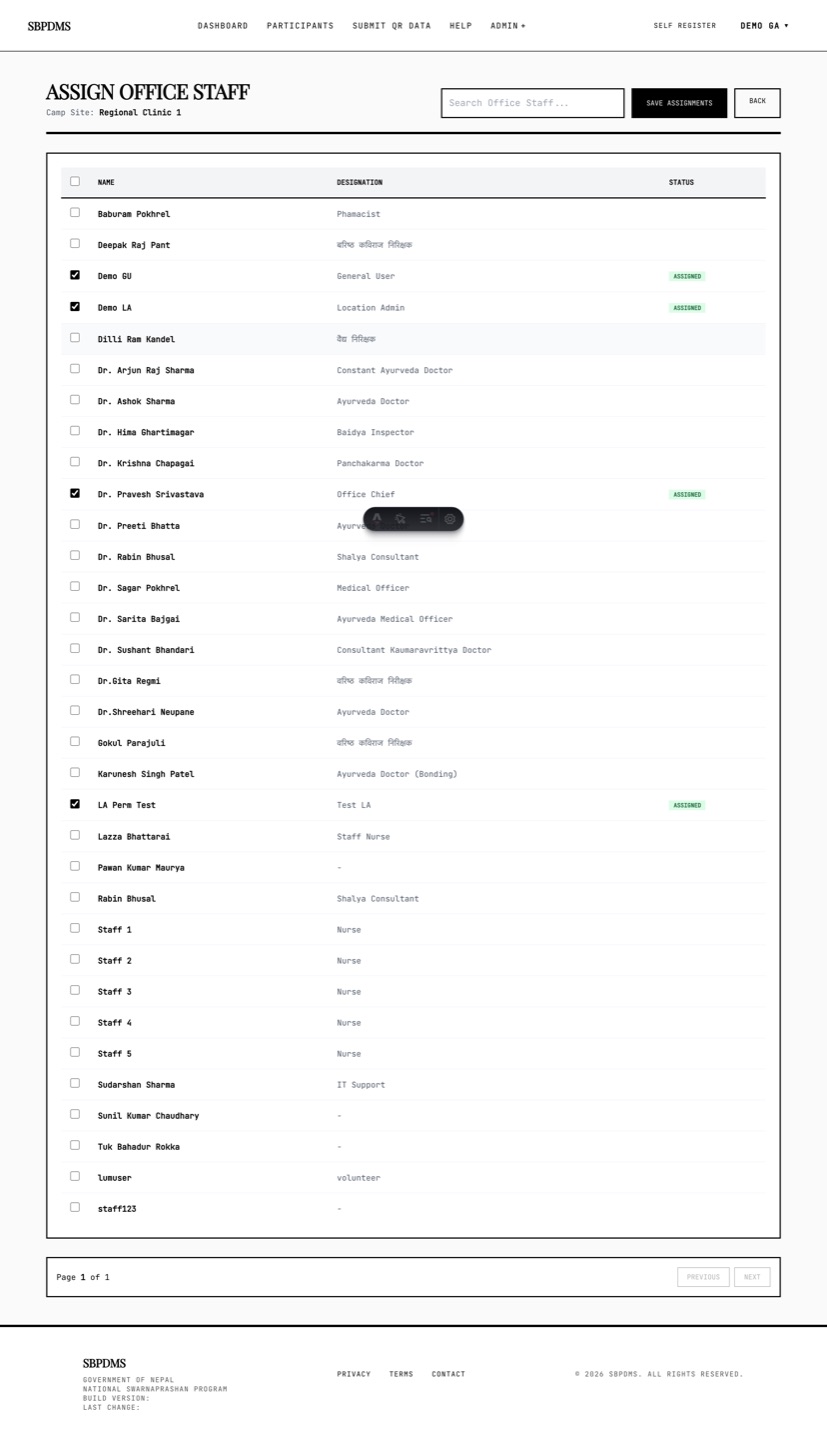 The Assign Office Staff page for one site. Tick the staff who should work at this site and save.
- Click Add Office Staff on the site’s row. The page heading reads Assign Office Staff and names the site.
- The list shows office staff (LocationAdmin and GeneralUser roles). Staff already assigned here show a green Assigned tag. Use Search Office Staff… to narrow it down.
- Tick or untick staff. Select all on this page ticks the whole current page.
- Click Save Assignments. A message confirms Assignments saved successfully!
Saving replaces the site’s whole assignment list with what is ticked. A staff member can be assigned to as many sites as you like. The same assignment can also be made from the staff member’s own form under Assign Primary Camp Sites (see Office staff). Both write to the same list, so use whichever is quicker.
The change is audited with the old and new sets of staff, so you can see who was added or removed.
Removing staff from a site
Section titled “Removing staff from a site”Open Add Office Staff for the site, untick the person, click Save Assignments.
- The staff record stays. Their past registrations, verifications and dose records stay attached to them.
- They stop seeing this site’s children, camp days and batches.
- If it was their only site, a LocationAdmin or GeneralUser now sees empty lists everywhere until they are assigned again.
Deleting a camp site and what stops it
Section titled “Deleting a camp site and what stops it”Click Delete on the row and confirm Delete this camp site?. Only SuperAdmin and GeneralAdmin can delete.
The delete is refused whenever anything still points at the site: a camp day (even a deleted one), a dose preparation, a staff assignment, a site-change request or an organisation roster imported for the site. The screen shows Failed to delete. In practice this means a site that has ever been used cannot be deleted, and that is intended: deleting it would break the history of every child dosed there.
If a site was created by mistake and never used, delete it. If it has been used and is now closed, leave it in place and stop assigning staff and scheduling camp days there. There is no “inactive” or “offline” flag on a camp site.