Self-registration (parents and public)
This page is for parents and guardians who want to register a child before camp day, and for staff who help families fill in the form at a desk. No login is needed.
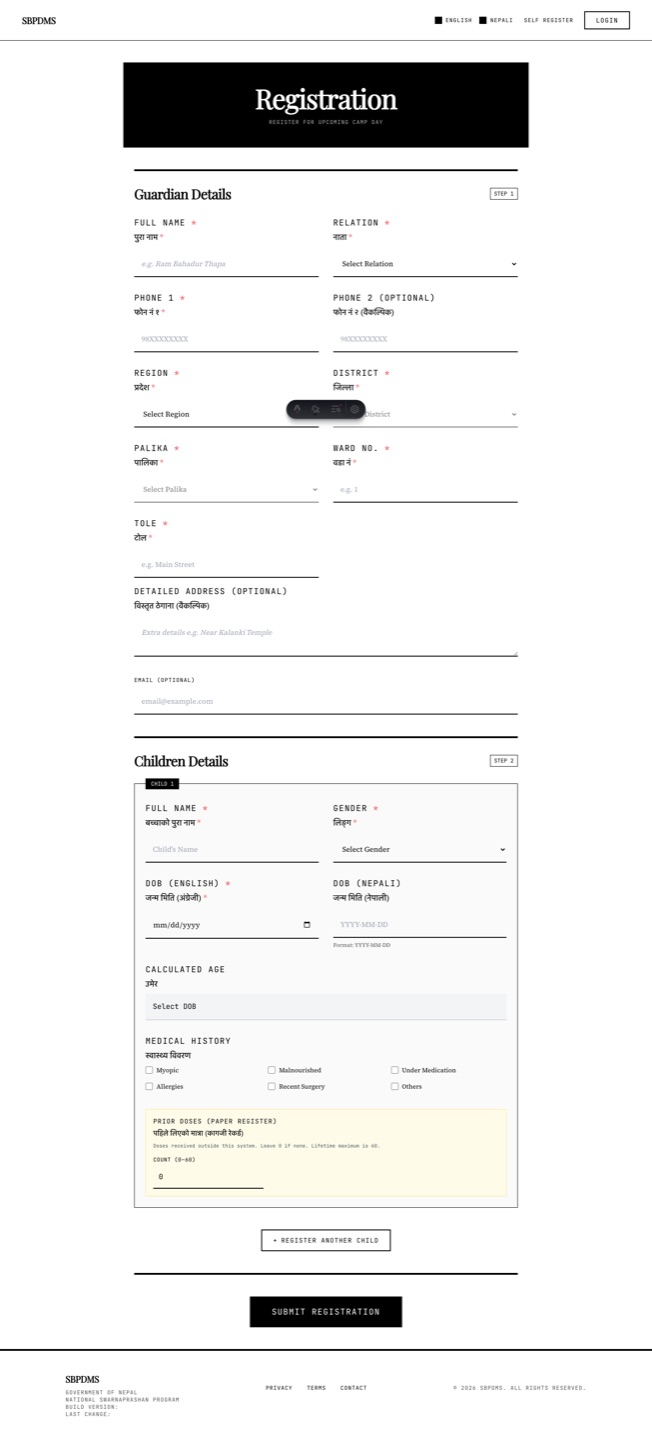 The public registration form. Guardian details come first, then one or more children, then the submit button.
Reaching the form
Section titled “Reaching the form”There are three ways to open it:
- Click Self Register in the top-right of the header on any page.
- Type
/registerafter the site address in your browser. - Scan a camp site’s poster QR. This opens the same form with that camp site already chosen as the preferred site, and a yellow banner at the top says Registering for followed by the site name.
The page heading says Registration. A toggle in the header switches the labels between English, नेपाली, or both.
Guardian Details
Section titled “Guardian Details”Fields marked with a red star are required.
| Field | Required | Notes |
|---|---|---|
| Full Name | Yes | The guardian’s full name. Used to detect duplicates, so spell it the same way every time. |
| Relation | Yes | Father, Mother, Grandfather, Grandmother, Uncle, Aunt or Other. |
| Phone 1 | Yes | A 10-digit Nepali mobile number starting with 9. The form refuses anything else. |
| Phone 2 (Optional) | No | Same format if given. |
| Region, District, Palika | Yes | Pick in order; each list narrows down the next. Palika is the local level (municipality or rural municipality). |
| Ward No. | Yes | The ward number. |
| Tole (Optional) | No | The neighbourhood. |
| Detailed Address (Optional) | No | Free text, such as a house or landmark. |
| This is not my permanent address | No | Tick if the address above is where you live now but not your permanent home. |
| Add my permanent address | No | Opens a second address block (Region, District, Palika, Ward No., Tole, Detailed Address). It is saved only while the block is open. |
| Email (Optional) | No | |
| Preferred Campsite | Yes | Type a district or camp site name and pick from the list. This is the camp the family plans to attend. |
Why is the preferred camp site required? Staff at that site use it to find families who registered but have not yet been verified, and reports count by site.
Children Details
Section titled “Children Details”The form starts with one child block. For each child:
- Full Name (required).
- Gender (required): Male, Female or Other.
- Date of birth (required). Choose the calendar first: AD (English) or BS (Nepali). Then type Day, Month and Year in the small boxes. The form converts the date into the other calendar and shows it under the boxes, and shows the Calculated Age. A date in the future is refused. The form starts in BS because that is what most families know.
- Medical History (if any): tick boxes for Myopic, Malnutrited, Under Medication, Allergies, Surgery, Autism and Other. Ticking Other opens a text box for details such as a drug allergy.
- Prior Doses (before registration): leave Count at
0if this is the child’s first time. Otherwise enter how many times the child has already had Swarnaprashan, for example from a paper register or a previous camp, and say where the number came from in Source / register name. There is no upper limit. The count is used later so the child’s dose numbering carries on from where the paper record ended.
Adding more than one child
Section titled “Adding more than one child”Click Add Another Child below the last child block to add a sibling. Every child in the form is linked to the same guardian. A child block other than the first has a Remove link in its top corner.
Submitting
Section titled “Submitting”- Click Submit Registration at the bottom.
- The form checks the phone numbers, the dates of birth and the preferred camp site, and shows a message at the bottom of the screen if something is wrong.
- A box asks Confirm Submission — Are you sure you want to proceed with registration? Click the confirm button.
If you are a staff member who is signed in, an extra yellow Staff — Verification box appears above the button with the tick box I have verified this information — register & verify now. Leave it unticked to register only and verify later. If you tick it, the button reads Register & Verify and the child is created already Verified at your camp site. See Verifying a registration.
The success screen
Section titled “The success screen”After a successful submit the form is replaced by Registration Successful (or Registered & Verified for the staff shortcut). It shows:
- Please save your Unique Participant Codes (UPC) and QR Codes.
- An amber notice: Please keep this safe.
- One card for the Guardian and one for each Child. Each card has a QR code and, under it, buttons to Download a PNG of the card and, for signed-in staff, Go To Profile.
- A Print Size dropdown (Sticker 50×30, A5, A4) and Print All Codes. Each card prints on its own page or sticker with the SBDMS title, the name, the QR and the UPC. The size you pick is remembered on this browser.
- Linked to existing guardian. appears if your name and phone matched a guardian already in the system. In that case the guardian card shows the existing UPC, not a new one.
Save the QR image to your phone, or print it and keep it with the child’s health card. On camp day, staff scan it or type the UPC to open the record. If you lose it, staff can still find the child by name or phone.
“Already Registered”
Section titled ““Already Registered””If the guardian name and Phone 1 match an existing guardian, and one of the children has the same name as a child already linked to that guardian, nothing new is created. An amber panel titled Already Registered lists the existing guardian and child UPCs.
- Show Details opens the success screen with the existing QR cards so you can print or download them again.
- Go Back returns to the form so you can correct a name, for example if this is really a different child.
Registering again or moving to another site
Section titled “Registering again or moving to another site”- Verification happens once. After a child is Verified, the Verify Registration button disappears from the profile and there is no “re-verify” button. If the family moved and the record should belong to another camp site, a GeneralAdmin or SuperAdmin uses Change Verification Campsite on the child’s profile instead.
- If a family will attend a different camp site than the one chosen at registration, they do not need to re-register. The verifying staff member sees a warning and can proceed or change the site.
- Editing a Verified child’s profile shows a warning that the participant is already verified and asks you to confirm before saving.