A guardian's profile
A guardian’s profile shows a parent’s or carer’s contact details and the children linked to them. It is the quickest way to find a family’s phone number or to see all the siblings registered under one parent. Any signed-in role can open the profile of a guardian they are allowed to see: global admins see every guardian; site admins and health workers see guardians linked to a child they can see.
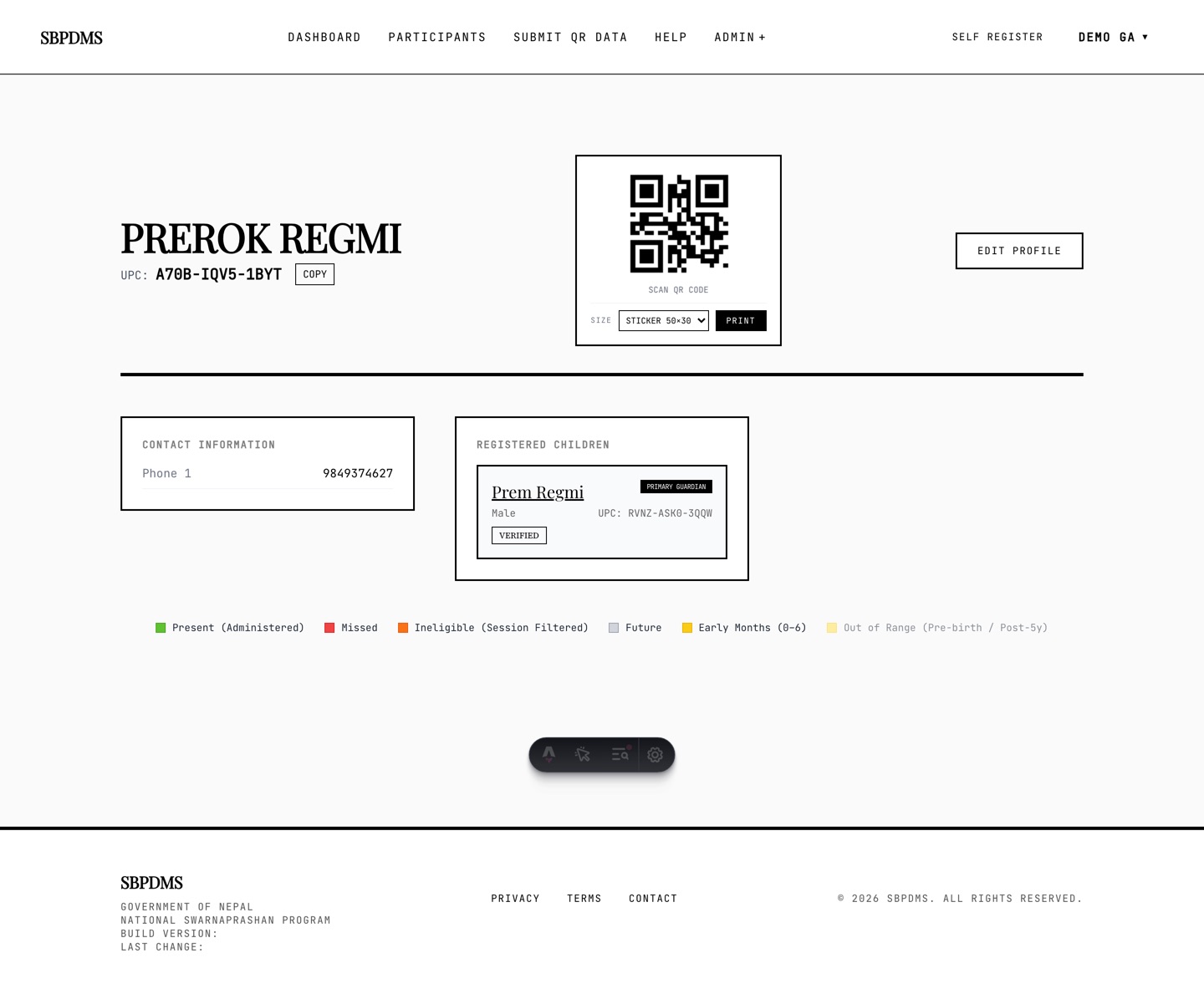 A guardian profile: name and UPC, the QR card, the Edit Profile button, the Contact Information panel and the Registered Children list. There is no dose timeline, because guardians do not receive Prashan.
Opening a guardian’s profile
Section titled “Opening a guardian’s profile”- In the Participants directory, click a name in the Guardian column, or tick Also show guardians and open a guardian row.
- On a child’s profile, click the guardian’s name in the Guardians panel.
- On a child’s edit form, click the guardian’s name under Linked Guardians.
Anatomy of the page
Section titled “Anatomy of the page”The layout mirrors a child’s profile with fewer parts:
- Header — the guardian’s name, UPC: with a COPY button, and the QR card. Guardians have no status, so there is no status pill and no verified-at badge.
- Action buttons — only Edit Profile is active. Push SMS appears greyed out with Coming soon. There is no Verify Registration (guardians are not verified separately from their children) and no Study & Analysis or Add Follow up (those are per child).
- Left column — the Contact Information panel.
- Below it — the Registered Children list.
The QR card works exactly as on a child’s profile: pick a Size, then Print or Download. The code contains the guardian’s UPC.
Contact Information
Section titled “Contact Information”| Row | What it shows |
|---|---|
| Phone 1 | Main mobile number. This is the number staff call. |
| Phone 2 | Second number, if any. |
| If any. | |
| Address | Free-text address as written at registration or on the edit form. |
Empty rows show N/A. The guardian’s region, district, palika, ward and tole are stored too, but they are shown on the edit form and in reports, not here.
Registered Children
Section titled “Registered Children”Each child linked to this guardian appears as a card showing:
- The child’s name — click it to open the child’s profile.
- The child’s gender and UPC.
- A status pill:
VerifiedorSelf Registered. - A black Primary Guardian badge when this guardian is the child’s primary guardian. Cards with the badge also get a black border.
Only the children you may see
Section titled “Only the children you may see”The list is filtered by your scope. A site admin or health worker sees only the children they could open from the directory: children with a dose session at one of their sites, or children with no dose session yet. A child dosed only at another site is left out, even though they are linked to this guardian. Global admins see every linked child.
The Primary Guardian badge
Section titled “The Primary Guardian badge”Every child has exactly one primary guardian. The primary guardian is:
- the contact who appears first on reports, and
- the default accompanying guardian on the Prashan-day page.
A guardian can be primary for one child and not for another (for example, a grandmother who is primary for one grandchild only). Cards without the badge are children for whom this guardian is a secondary contact. To change who is primary, open the child’s edit form; see Editing a child or guardian.
Switching to a child
Section titled “Switching to a child”Click a child’s name in Registered Children. Your browser’s Back button returns you to the guardian. If you need to keep both open, right-click the name and choose Open in new tab.
Editing a guardian
Section titled “Editing a guardian”Click Edit Profile to change the name, phone numbers, email, address or location. Children cannot be linked or unlinked from the guardian’s side; that is done on each child’s edit form. See Editing a child or guardian.