The Participants directory
The Participants directory is the list of every child (and, if you ask for them, every guardian) registered in SBDMS. Use it to find a child, check their status, see how many doses they have had, and open their profile. Every signed-in role can use it. What you see inside it depends on your role (see the last section).
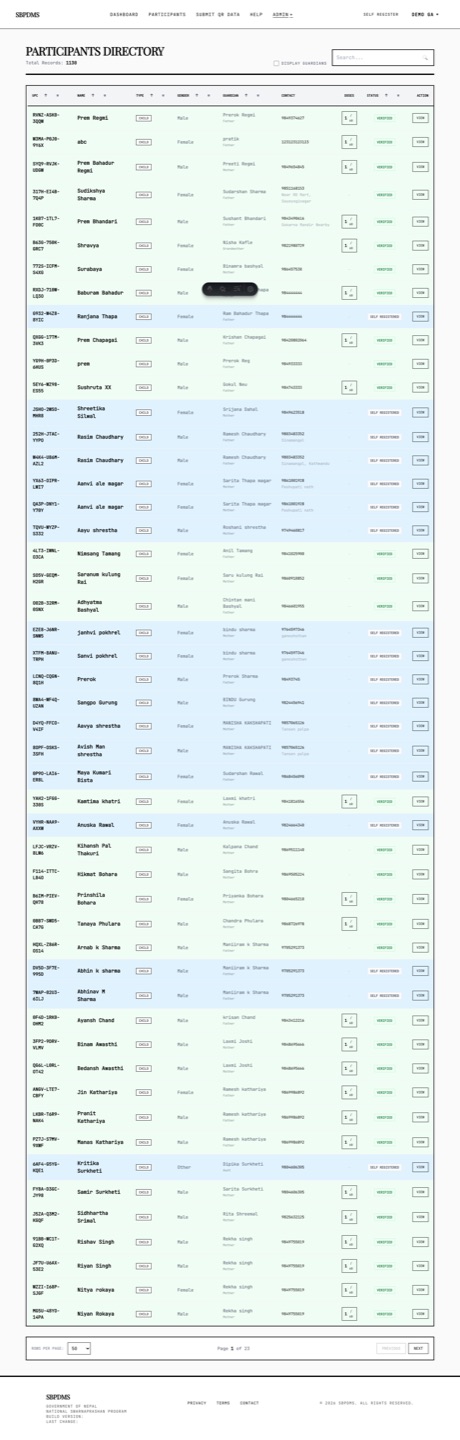 The directory as a global admin sees it: heading and record count at the top, filters and the search box on the right, and the table below.
Opening the directory
Section titled “Opening the directory”- Sign in.
- Click Participants in the top bar. On a phone, open the menu first.
The page heading is Participants Directory. Under it, Total Records shows how many rows match your current search and filters. While the list loads you see grey placeholder bars; they are replaced by rows (or by an empty message) once the data arrives.
Reading a row
Section titled “Reading a row”Each row is one child or one guardian. On a desktop screen the columns are:
| Column | What it shows |
|---|---|
| UPC | The child’s or guardian’s unique participant code, for example QUQV-7135. |
| Name | The name. Click it to open the profile. Under the name, in small grey text, the guardian’s district · palika (local level) when known. |
| Type | CHILD (white pill) or GUARDIAN (black pill). |
| Gender | Male, Female or Other. Blank (-) for guardians. |
| Guardian | The child’s primary guardian and their relation (Father, Mother, …). Click the name to open that guardian. Blank for guardian rows. |
| Contact | The guardian’s main phone number. |
| Doses | The child’s lifetime dose total as N / 60: doses recorded in SBDMS plus any prior paper-register doses. Hover the pill to see the split. A dash means no doses yet. |
| Status | VERIFIED (green pill) or SELF REGISTERED (grey pill). Under a verified status, the camp site where the child was verified. Under a self-registered status, Prefers: followed by the site the family chose at registration. |
| Action | View opens the profile. Global admins also see Delete. |
A child who is Verified has been checked in person by staff. A child who is Self Registered was entered by a parent on the public form and has not been verified yet. Only verified children can be dosed.
Row colours
Section titled “Row colours”Every row has a coloured left edge and a faint tint of the same colour, so you can read the status without reading the text:
| Colour | Meaning |
|---|---|
| Green | Verified child |
| Blue | Self-registered child (not yet verified) |
| Orange | Guardian |
Moving the mouse over a row darkens it slightly. That is only a hint that the row can be clicked.
Searching
Section titled “Searching”The search box is in the top right. Type a name, a UPC, or a phone number. The list updates about half a second after you stop typing, and jumps back to page 1.
- For children, the search matches the name and the UPC.
- For guardians (only when guardians are shown), it matches the name, the UPC and Phone 1.
- Matching is not case-sensitive and matches part of a word:
ramfinds Ram Bahadur and Baburam.
Every match inside the UPC and Name cells is highlighted in yellow so you can see which letters matched.
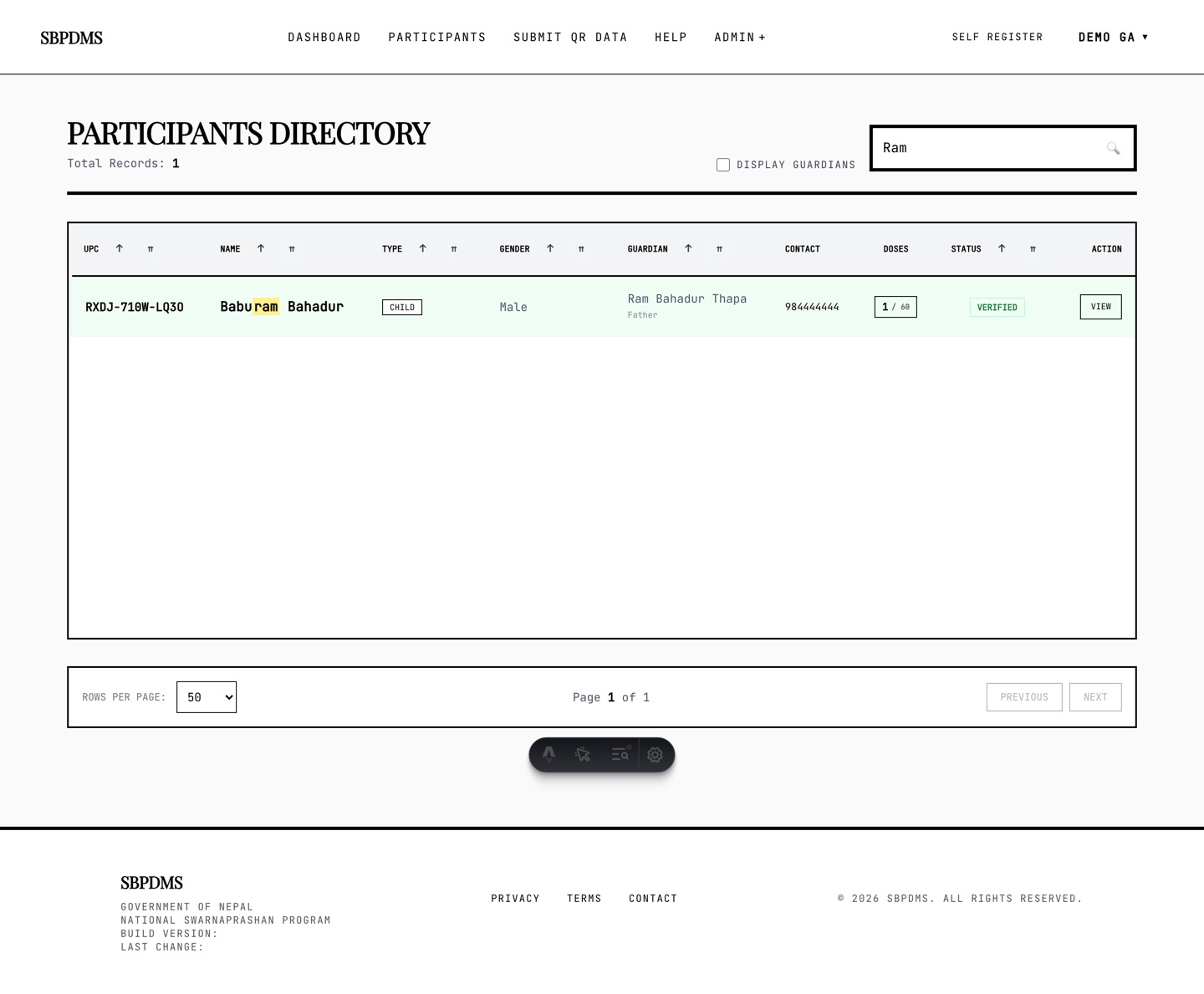 Searching for a name lights up every matching part of the Name and UPC columns.
To clear the search, delete the text in the box. The full list comes back.
Sorting: two kinds of sort
Section titled “Sorting: two kinds of sort”Columns UPC, Name, Type, Gender, Guardian and Status can be sorted. Each of these headers has two small buttons:
| Button | Name shown on hover | What it does |
|---|---|---|
| Single arrows (↑ / ↓) | Sort Current View | Re-orders only the rows already on your screen. Instant. Lost when you change page or search. |
| Double arrows (⇈ / ⇊) | Sort All Data (Server) | Asks the server to re-order the whole list across every page. Goes back to page 1. Stays in effect while you page through. |
Click a button once for ascending order, click it again for descending. The active client-sort button turns dark; the active server-sort button turns blue.
When you first open the page the server sort is by registration order (oldest first). Doses and Contact cannot be sorted. Sort choices are not remembered after you leave the page.
Pages and page size
Section titled “Pages and page size”The bar at the bottom of the list controls paging:
- Rows per page — choose
10,50,200or1000. The default is 50. Changing it returns you to page 1. - Page X of Y — where you are.
- Previous and Next — move one page. Previous is greyed out on page 1, Next on the last page. Both scroll you back to the top.
Your search, filters and server sort are kept when you change pages.
Filters
Section titled “Filters”The filters sit to the left of the search box. Which ones you see depends on your role.
Also show guardians
Section titled “Also show guardians”By default the directory lists children only. Tick Also show guardians to add guardian rows (orange). The Total Records count grows, and the search starts matching guardian names and phone numbers too.
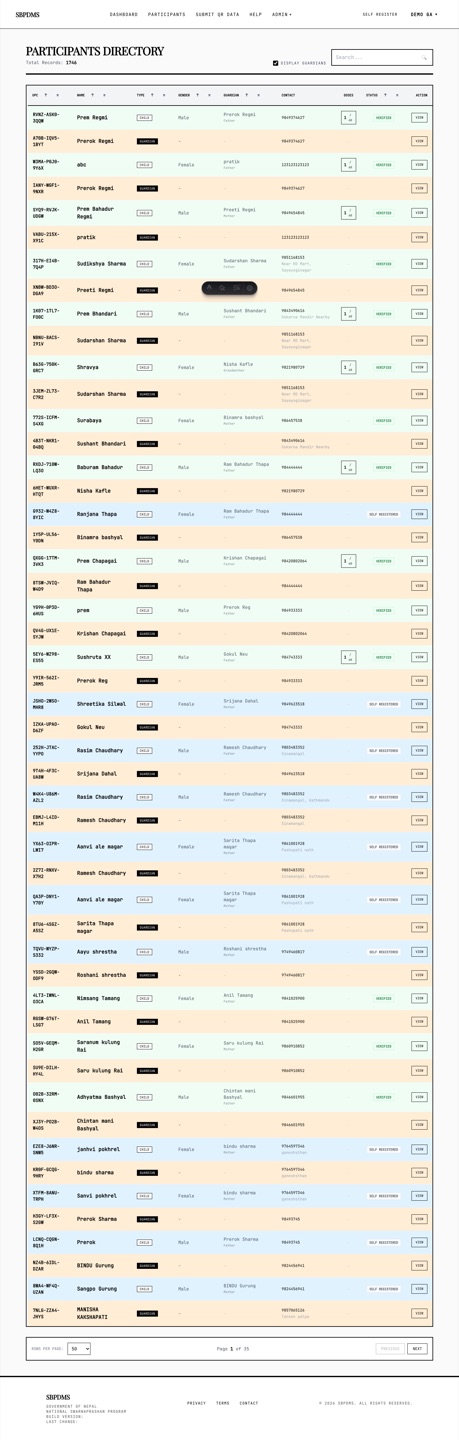 With Also show guardians ticked, guardian rows (orange, black GUARDIAN pill) mix in with the children.
This box is greyed out while My campsite only or Show unverified is ticked. Guardians do not belong to a camp site and are never “unverified”, so those filters cannot apply to them.
Filter by campsite (global admins only)
Section titled “Filter by campsite (global admins only)”SuperAdmins and GeneralAdmins get a Filter by campsite dropdown. Pick a site to see only the children verified at that site. Guardian rows (if shown) are narrowed too: a guardian stays in the list when at least one of their children was verified at that site. Choose All campsites to remove the filter.
My campsite only (site admins and health workers only)
Section titled “My campsite only (site admins and health workers only)”LocationAdmins and GeneralUsers get a My campsite only checkbox instead of the dropdown. It is ticked when the page opens. While ticked, the list shows only children verified at one of your assigned camp sites. Untick it to see everything your role allows (see below).
Show unverified
Section titled “Show unverified”Everyone has Show unverified. Tick it to see the “come and verify me” queue: children who self-registered and have not been verified yet.
| Your role | What Show unverified lists |
|---|---|
| Global admin, no site chosen | Every unverified child in the system |
| Global admin, site chosen in the dropdown | Unverified children whose preferred site is that site |
| Scoped user, My campsite only ticked | Unverified children whose preferred site is one of your sites |
| Scoped user, My campsite only unticked | Every unverified child in the system |
The wider views exist on purpose: a parent may have picked the wrong preferred site, and you can only fix that if you can find the child.
The Action column
Section titled “The Action column”- View opens the profile. It goes to the same place as clicking the name. See A child’s profile and A guardian’s profile.
- Delete (SuperAdmin and GeneralAdmin only) hides the record. A confirmation box explains: the record disappears from listings and the directory, but the dose history and audit trail are kept. This cannot be undone from the screen, so read the name in the box before you confirm.
On a phone
Section titled “On a phone”Below tablet width the table becomes a stack of cards, one per row. Each card shows the name, UPC, district and palika, the type pill, the dose count, gender, status (with the verified-at or preferred site), guardian and contact. Tap anywhere on the card to open the profile. The card keeps the same colour code as the table rows. For global admins a small Delete button sits in the card’s top-right corner.
Empty states
Section titled “Empty states”If nothing matches, the list area shows No participants found. in grey. Before you assume the record does not exist, check:
- The search box — is there leftover text?
- My campsite only — is it ticked while you are looking for a child from another site?
- Show unverified — a self-registered child is still listed without it, but a filter combination may be hiding them.
- Your role’s scope (next section).
What each role sees
Section titled “What each role sees”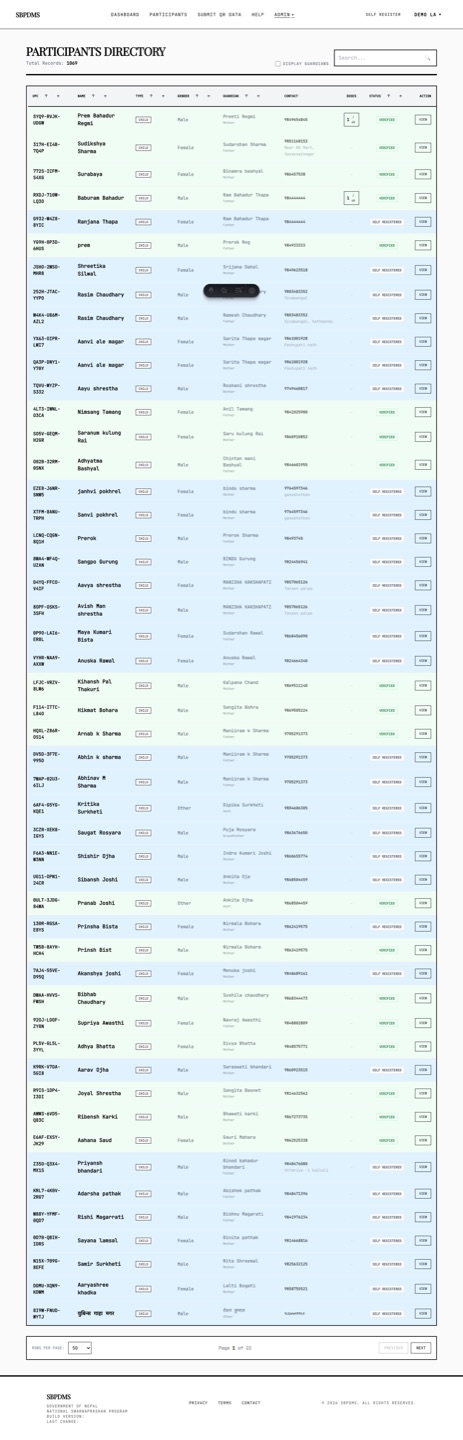 A LocationAdmin’s directory: no campsite dropdown, My campsite only ticked, and only that site’s children listed.
| SuperAdmin / GeneralAdmin | LocationAdmin / GeneralUser | |
|---|---|---|
| Children listed | All | Children with at least one dose session at one of your sites, plus any child who has no dose session yet (so anyone can verify a newcomer) |
| Guardians listed | All | Guardians linked to a child you can see |
| Site filter | Filter by campsite dropdown | My campsite only checkbox (on by default) |
| Delete button | Yes | No |
Records outside your scope are not just hidden from the list; opening their profile by URL shows “not found”. Deleted records never appear for anyone.