Reference data
This page covers the seven small lists under Reference Data in the Admin menu. They fill the dropdowns and tick-boxes used everywhere else. It is for SuperAdmin and GeneralAdmin users, who are the only ones who can change them.
Who may edit
Section titled “Who may edit”| List | View | Create, edit, delete |
|---|---|---|
| Regions, Districts, Local Levels | Everyone signed in | SuperAdmin, GeneralAdmin |
| Units, Ingredients | Everyone signed in | SuperAdmin, GeneralAdmin |
| Dose Rules, Exclusion Criteria | Everyone signed in | SuperAdmin, GeneralAdmin |
A LocationAdmin sees the + New and Edit buttons on these screens, but the server refuses the save. GeneralUsers see the lists read-only under a menu called Core Data.
Each list works the same way: a searchable table with View, Edit and Delete on every row, a + New … button, and a page-size selector at the bottom. Deleting asks for confirmation. For places, units and ingredients the delete fails if the row is still used somewhere, for example a district that has camp sites or a unit used by an ingredient. Dose rules and exclusion criteria have no such guard (see the note at the end).
Regions
Section titled “Regions”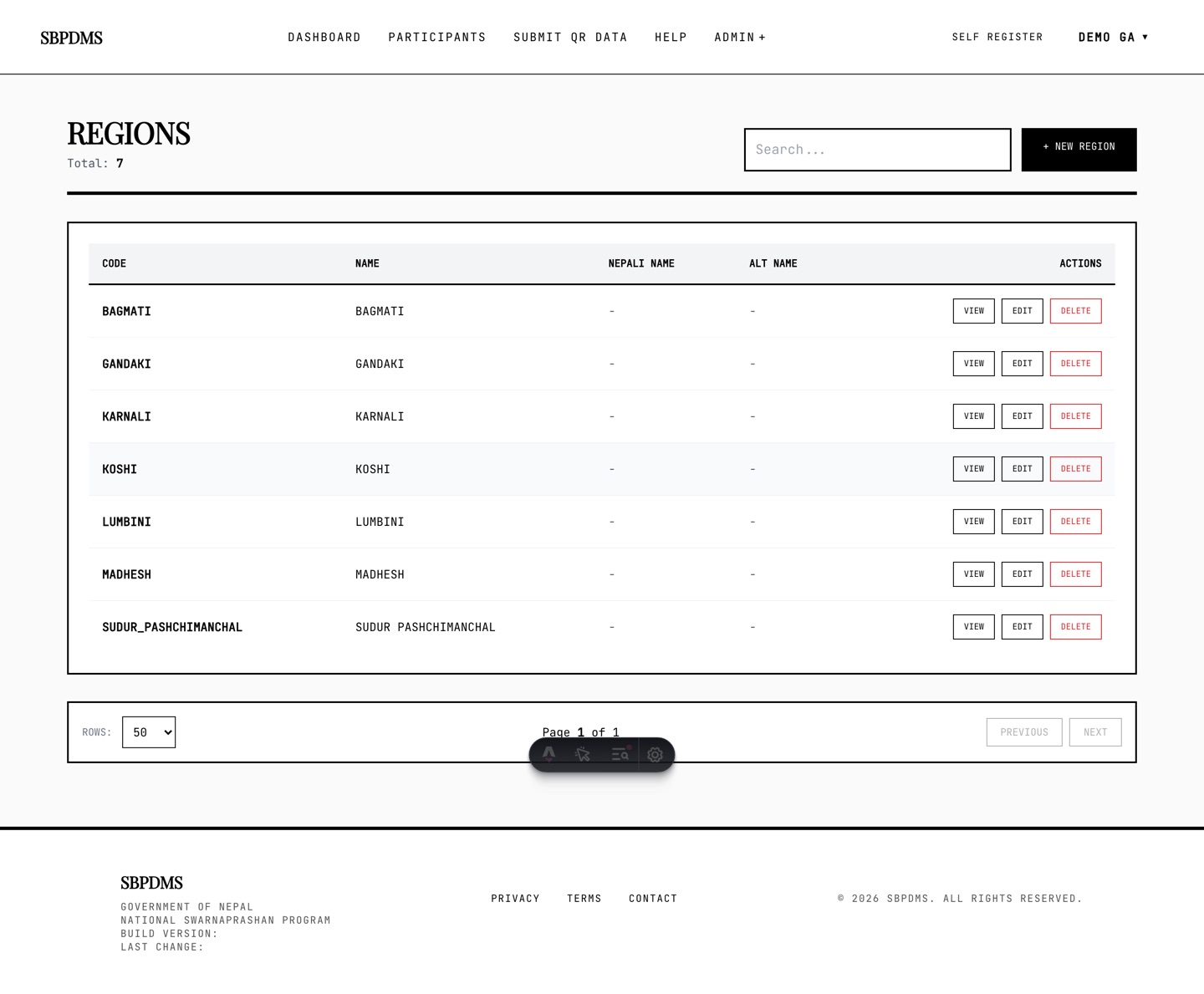 Regions: Nepal’s provinces, with code, name, Nepali name and alternative name.
Admin → Regions. One row per province. Columns: Code, Name, Nepali Name, Alt Name.
To add one, click + New Region and fill Region Name and Code (Unique) (both required), plus Nepali Name, Alt Name and Remarks if wanted. If the save fails, the name or code already exists.
Regions are usually seeded at installation. You rarely add any.
Districts
Section titled “Districts”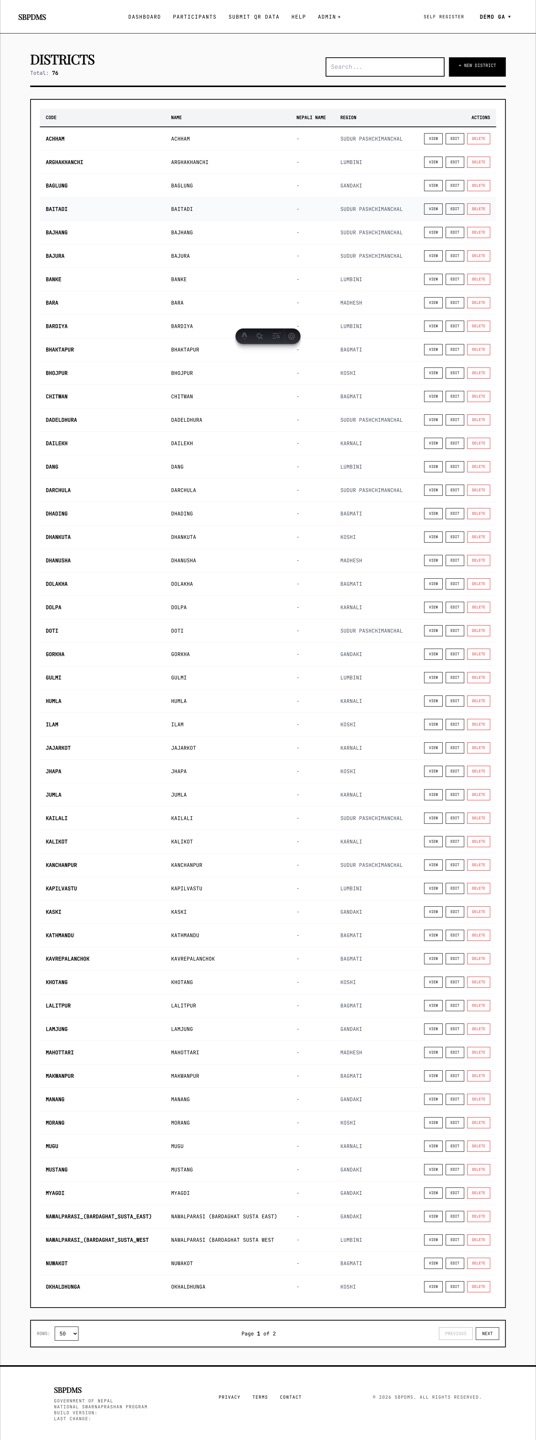 Districts, each belonging to one region.
Admin → Districts. A district belongs to one region. To add one, click + New District, pick the Region, fill District Name and Code (Unique), and optionally Nepali Name, Alt Name and Remarks.
Districts are used in the camp site form and in guardian addresses. Picking a region filters the district dropdown on those forms.
Local Levels (Palikas)
Section titled “Local Levels (Palikas)”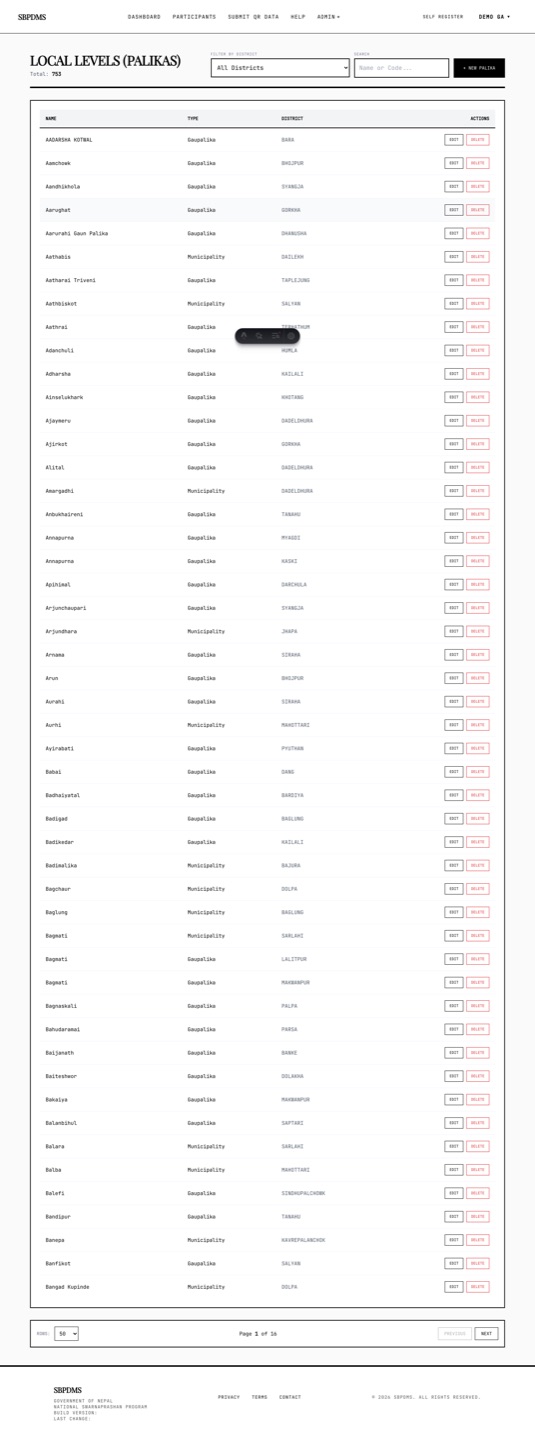 Local Levels with their type and district.
Admin → Local Levels. The heading reads Local Levels (Palikas). Columns: Name, Type, District. Use Filter by District and Search (name or code) to find one.
To add one, click + New Local Level (Palika) and fill:
- District (required).
- Type (required): Metropolitan, Sub-Metropolitan, Municipality or Gaupalika. Municipality is a Nagarpalika; Gaupalika is a rural municipality.
- Name (required), Nepali Name, Code (Unique).
Local levels appear as Palika on the camp site form and in addresses. Adding one makes it available to the public registration form straight away.
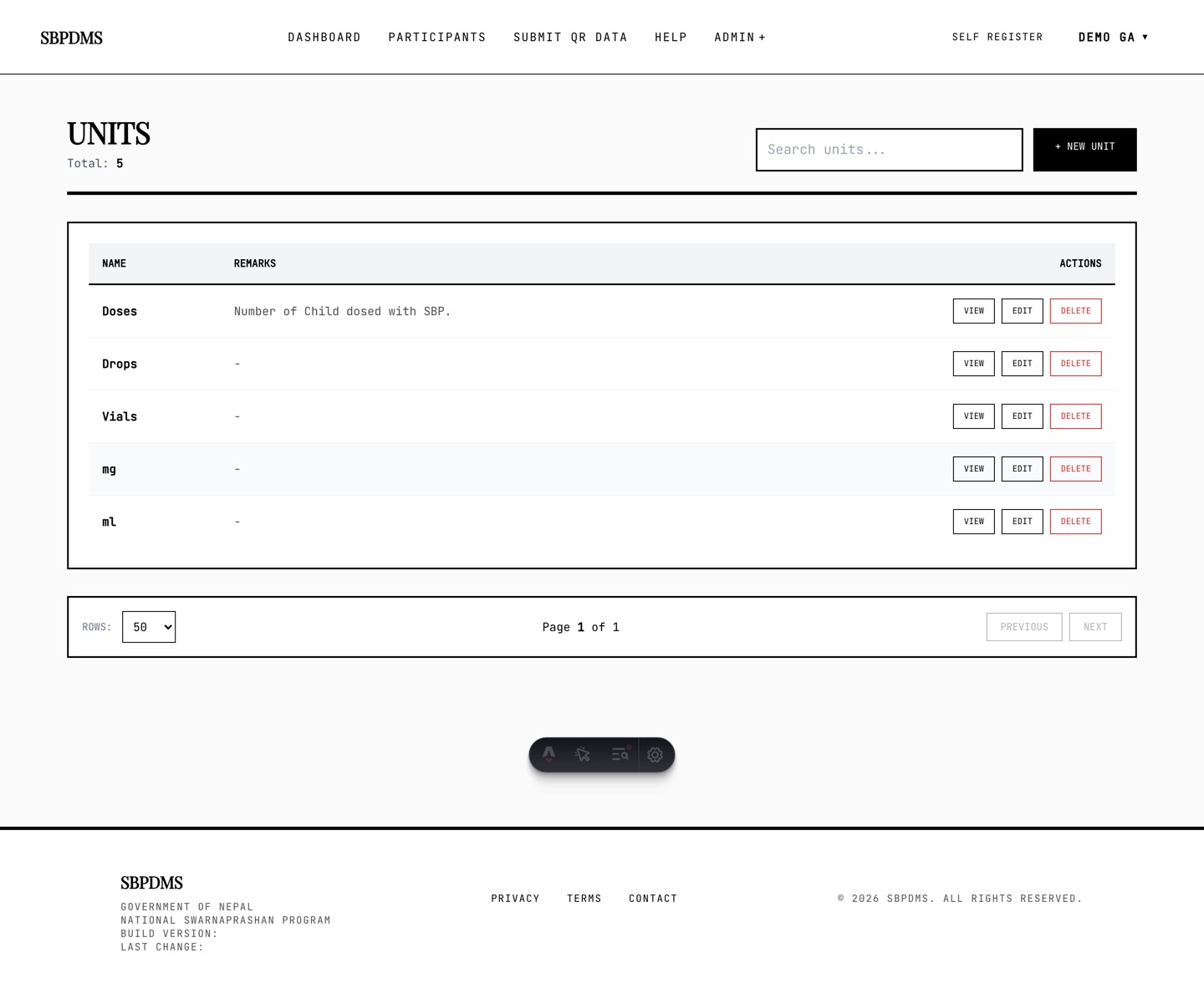 Units of measure used for quantities.
Admin → Units. The units used for a batch’s total quantity and for each ingredient line: ml, mg, KG, Drops and so on. Click + New Unit, type Unit Name and optional Remarks, and save.
Every ingredient also has a default unit, so create the unit before the ingredient.
Ingredients
Section titled “Ingredients”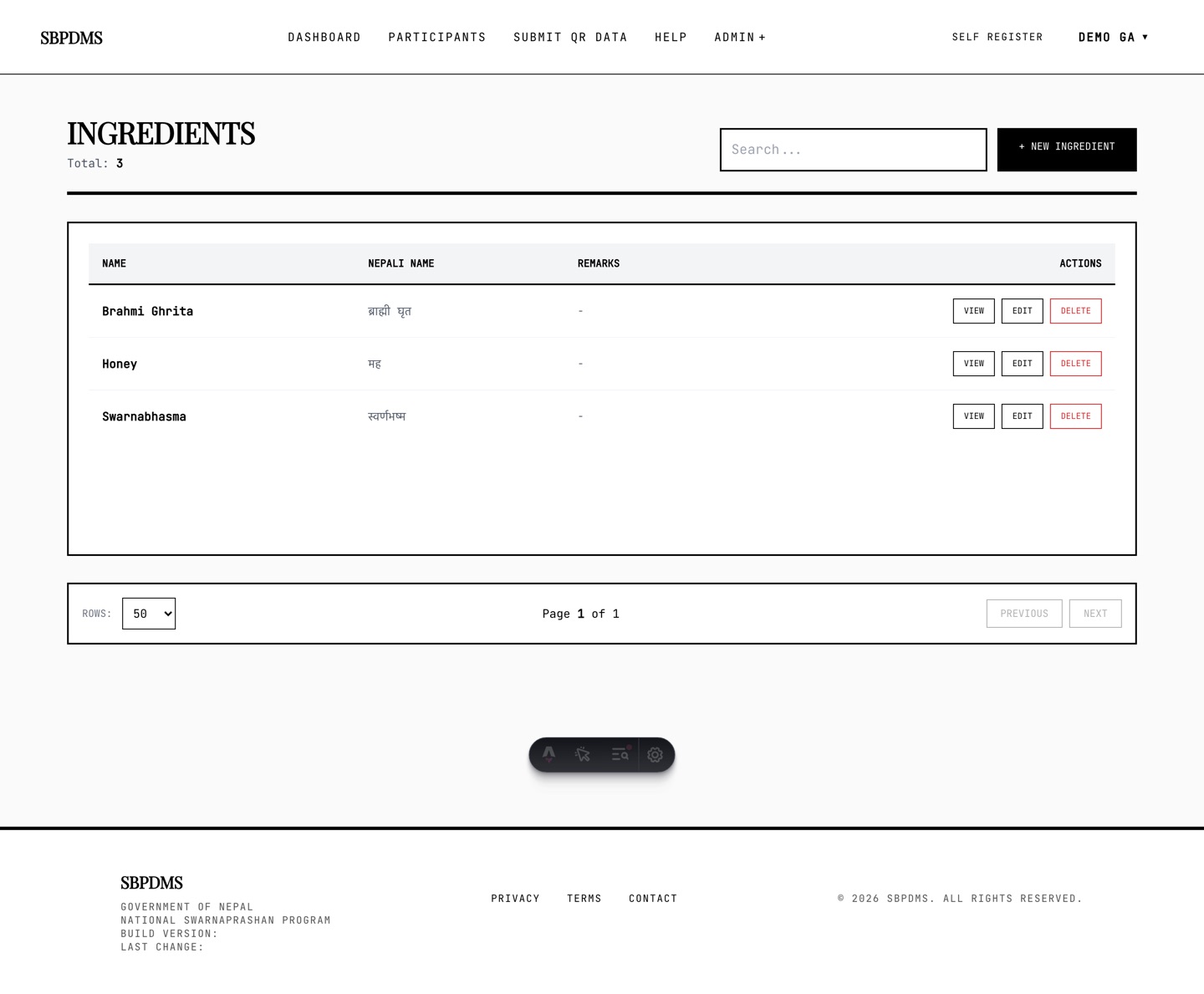 Ingredients that can go into a batch.
Admin → Ingredients. The substances a dose batch can contain, for example Swarna Bhasma, Vacha, Brahmi, honey, ghee. Click + New Ingredient, pick the Unit, fill Ingredient Name (required), and optionally Nepali Name and Remarks.
Ingredients appear in the Ingredients Used lines of a dose preparation. See Dose preparations.
Dose Rules
Section titled “Dose Rules”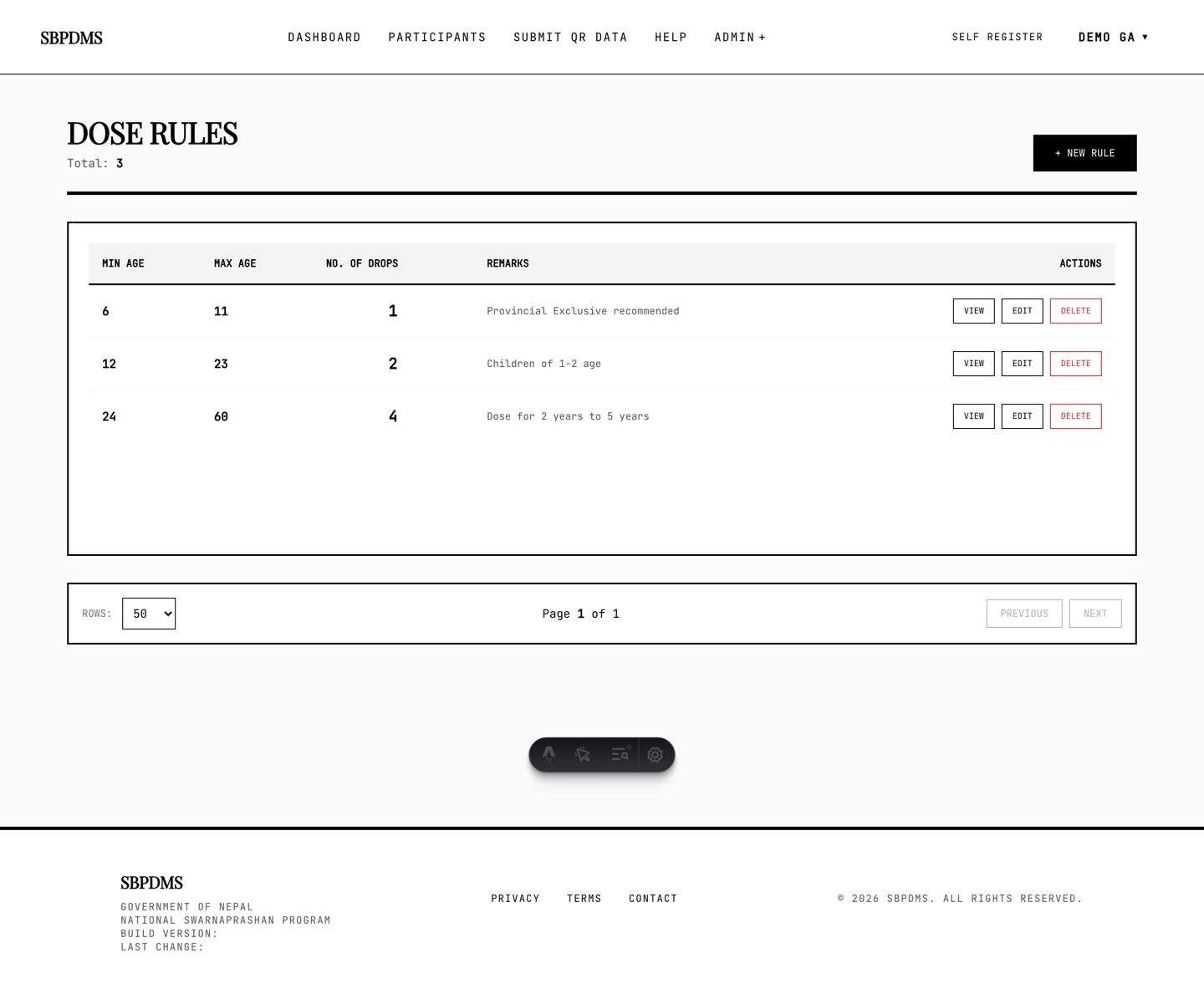 Dose Rules: an age band in months and the number of drops for it.
Admin → Dose Rules. Each rule is an age band and a dose:
- Min Age (Months) and Max Age (Months), both inclusive.
- No. of Drops.
- Remarks.
Click + New Dose Rule to add one. All three numbers are required.
How the rules are used on the Prashan page:
- The dosing step shows a large Drops figure: the rule that matches the child’s age in months on the camp day. It also shows the whole table of rules for reference.
- The server refuses to start a dose for a child whose age matches no rule. The health worker sees a message such as Prashan is allowed only for children between 0 and 16 years — this child is 16y 3m old. If no rules exist at all, the message asks them to contact an administrator.
Keep the bands continuous with no gaps and no overlaps, for example 0 to 11, 12 to 23, 24 to 59, and so on. A gap means children of that age are refused; an overlap means the first matching rule wins.
Exclusion Criteria
Section titled “Exclusion Criteria”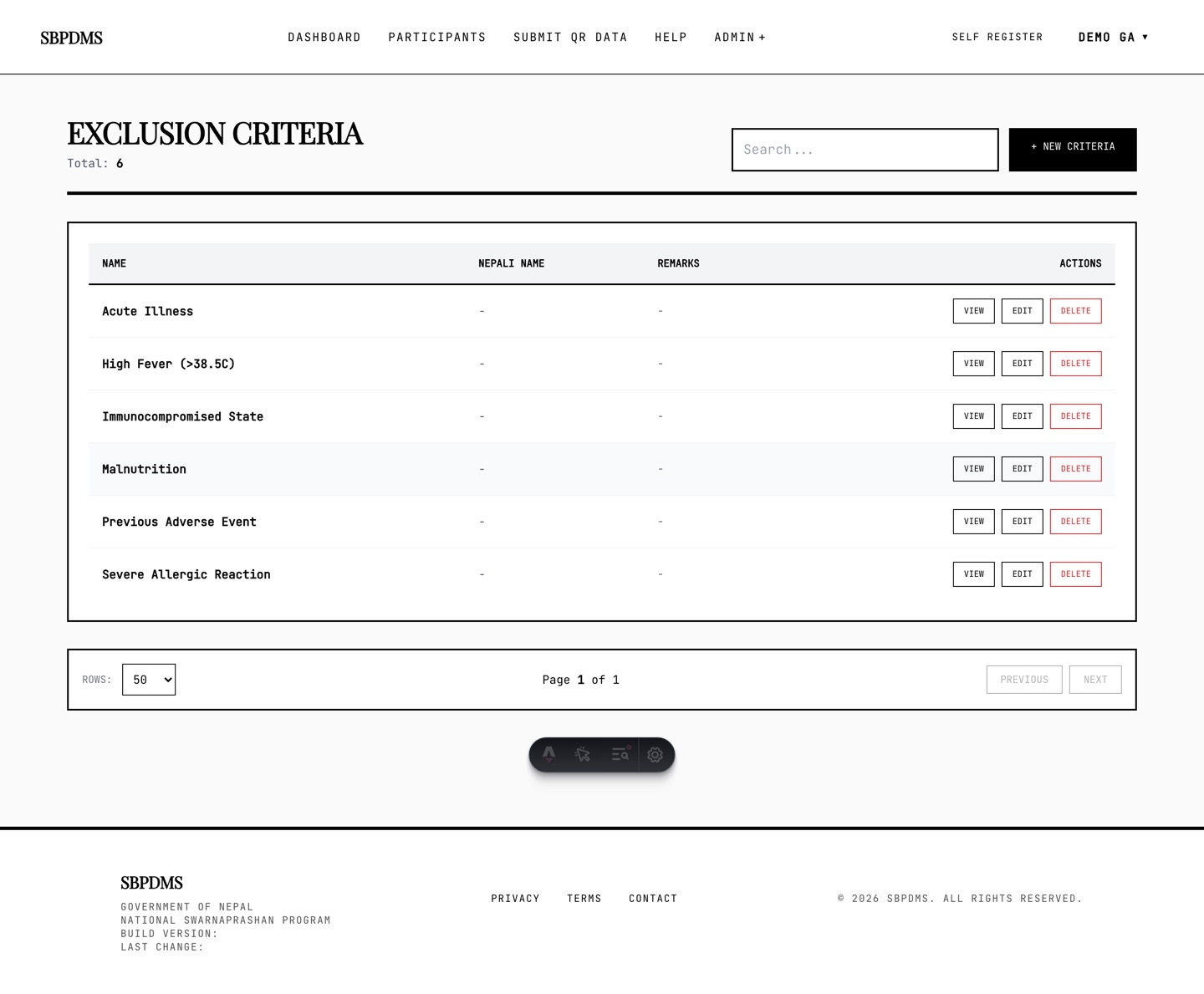 Exclusion Criteria with English and Nepali labels.
Admin → Exclusion Criteria. Reasons a child must not be dosed today, such as fever, acute illness, or a recent medical procedure. Columns: Name, Nepali Name, Remarks.
Click + New Criterion, fill Criterion Name (required) and Nepali Name, and save. Fill the Nepali name: the Prashan page shows the label in English, Nepali or both depending on the health worker’s language toggle.
On the Prashan page each criterion is a tick-box under Medical History & Exclusion Criteria. Ticking one marks the child as excluded for the day and makes Exclusion Remarks mandatory. An Other option with a free-text reason is always present, so you do not need a catch-all criterion here. Excluded children are counted separately in the day’s reports.