Camp days
This page explains the Admin → Camp Days screen. It is for SuperAdmin, GeneralAdmin and LocationAdmin users who plan Prashan days. GeneralUsers can see the camp days at their sites.
What a camp day is
Section titled “What a camp day is”A camp day is one Prashan event at one camp site, with a start and an end date and time. Every screening and every dose is recorded against a camp day, and the dose batches for the day are locked to it. Without a camp day there is nothing for the Prashan page to work on.
A camp day has one of four statuses:
| Status | Colour | Meaning |
|---|---|---|
| Scheduled | blue | Planned. Can be edited. |
| Ongoing | green | Running now. Batches can still be locked to it. |
| Completed | grey | Finished. Read-only. |
| Cancelled | red | Set automatically when a camp day is deleted. Read-only. |
Status does not change by itself. You choose Scheduled or Ongoing when you create the day, and you mark it Completed when it is over.
The list
Section titled “The list”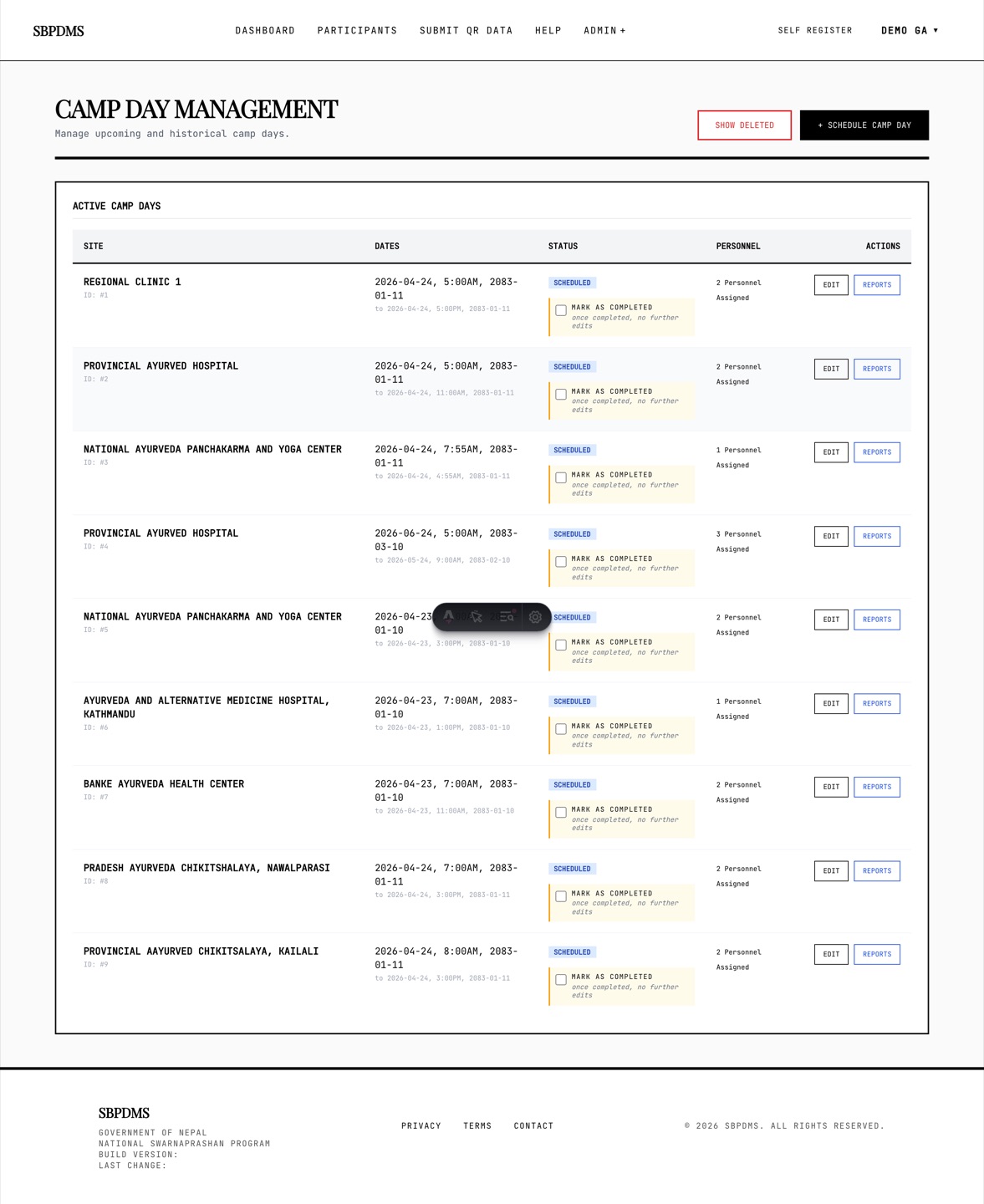 Camp Day Management. Site, dates, status with the Mark as Completed tick-box, personnel count and the row actions.
Open Admin → Camp Days. The heading reads Camp Day Management. The Active Camp Days table lists non-deleted camp days, newest start date first.
| Column | What it shows |
|---|---|
| Site | Site name with ID: # underneath. |
| Dates | Start, then to end, in Nepal time. |
| Status | The badge, plus Mark as Completed for Scheduled and Ongoing days. |
| Personnel | How many staff are attached. |
| Actions | Edit (Scheduled or Ongoing), View (anything not Scheduled), Reports. |
LocationAdmin and GeneralUser see only camp days at their sites. SuperAdmin and GeneralAdmin also get a Show Deleted button (see below).
Scheduling a camp day
Section titled “Scheduling a camp day”- Click + Schedule Camp Day.
- Pick Select Camp Site. A LocationAdmin sees only their sites.
- Set Start Date & Time and End Date & Time. Enter them in Nepal time. The end cannot be before the start; the page and the server both refuse it. A camp day may run over more than one date.
- Under Dose Batches, tick the batches for this day. Only batches at the chosen site are listed, and a batch already locked to another day is marked (LOCKED). Ticking a Prepared batch locks it to this day when you save.
- Under Assigned Personnel, tick the staff who will work the day. The list shows staff assigned to the site; tick Show all available personnel to see everyone.
- Choose Initial Status: Scheduled or Ongoing.
- Click Confirm Schedule and confirm the dialog.
At least one batch and one staff member are required by the form. If the batch does not exist yet, most offices save the day with a batch they have, or create the day first and lock the batch from Dose preparations, which attaches it to the day.
Dates are shown as AD on these admin screens. The Prashan page and the reports show the BS (Bikram Sambat) date alongside.
Attaching dose batches and staff
Section titled “Attaching dose batches and staff”There are two ways to attach a batch:
- Tick it under Dose Batches on the camp day form. Saving locks it.
- Lock it from the batch’s View page and pick this camp day in the dialog. This is the usual route on the day itself.
Either way the batch appears in the Prashan page’s batch dropdown for this camp day only. A batch at another site can never be attached.
Staff are attached under Assigned Personnel. This records who was responsible for the day and feeds the staff count in the list and the personnel section of the day’s report. Staff assigned to the site who are not ticked can still sign in and see the site.
Editing a camp day
Section titled “Editing a camp day”Click Edit on a Scheduled day. The form heading reads Edit Camp Day with the status badge. An Ongoing or later day opens read-only in View Camp Day instead, with a note that only Scheduled camp days can be edited.
What you can change depends on your role:
- SuperAdmin and GeneralAdmin can change the site, the dates, the batches, the staff and the Status dropdown.
- LocationAdmin can change the staff only. A grey notice says Campsite, start date, and end date: Only SuperAdmin can change these once a camp day exists. The batch tick-boxes are disabled too.
Unticking a batch releases it: it goes back to Prepared and can be locked to another day. Under Unlock Locked Doses (SuperAdmin and GeneralAdmin only) an UNLOCK button does the same for one batch without saving the form. Click Save Changes and confirm; the form asks you to check the batch selection because it cannot be changed once the day is running.
Marking a camp day Completed
Section titled “Marking a camp day Completed”On the list, tick Mark as Completed on the row and confirm Mark this camp day as Completed?. Only Scheduled and Ongoing days can be completed. Once completed, no further edits are allowed; only viewing remains.
Do this at the end of every Prashan day. It matters because:
- The dashboard treats any day that is not Completed as Upcoming, and uses the last Completed day at the site to estimate the next day’s numbers.
- No more batches can be locked to a Completed day.
- The day’s numbers in reports and analytics stop moving, so the figures you send onward are final.
Unassigning doses
Section titled “Unassigning doses”Batches stay locked to a camp day even after the day is deleted. To free them, open Show Deleted, find the day in Deleted Camp Days (Doses Locked), and click Unassign Doses. Confirm Unassign doses? They will become UNLOCKED and can be reassigned to other camp days. The batches return to Prepared. Only SuperAdmin and GeneralAdmin can do this, and it is audited.
Deleting, viewing deleted and restoring
Section titled “Deleting, viewing deleted and restoring”A camp day is never removed from the database. Deleting it marks it as deleted and sets its status to Cancelled, so every screening and dose recorded on it keeps its history. The delete action is available to SuperAdmin, GeneralAdmin and LocationAdmin through the system’s API and is recorded in the audit log; the current Camp Days screen does not show a Delete button.
SuperAdmin and GeneralAdmin can click Show Deleted to reveal the Deleted Camp Days (Doses Locked) table with site, dates, status, the number of batches still attached and the Unassign Doses action. Click Hide Deleted to close it.
A deleted camp day can be restored by a SuperAdmin or GeneralAdmin; restoring puts it back as Scheduled. There is no Restore button on the screen at present, so ask a developer if you need one restored.
The audit trail per camp day
Section titled “The audit trail per camp day”Every create, update, complete, delete, restore and dose-unassign on a camp day is written to the system audit log with who did it, when, and the details of the change. The screen has an Audit Logs - Camp Day # dialog that lists these entries with the action, time, the person and the change, but no button opens it at present. The same entries are visible to a SuperAdmin or GeneralAdmin in the audit log.
Reports and analytics
Section titled “Reports and analytics”Click Reports on a row to open the camp day analytics page for that day. It shows the day’s totals, screened-but-not-dosed children, the batch filter and the per-staff numbers. See the reports section of this guide for details.