Dose preparations (batches)
This page explains the Admin → Dose Preparations screen. It is for the SuperAdmin, GeneralAdmin or LocationAdmin who records each day’s batch. GeneralUsers can view batches at their sites but not create them.
What a dose preparation is
Section titled “What a dose preparation is”A dose preparation is the record of one prepared batch of Swarna Bindu drops. It holds:
- A batch code, called DBC on screen, such as
FKK-2026-09-0001. It is made of the camp site code, the year and month of preparation, and a running number for that site and month. The system generates it; you cannot type it. - The camp site the batch was made for.
- The date and time of preparation.
- The total quantity and its unit (for example
250 ml). - The ingredients used, each with a quantity, unit and the supplier’s batch number.
- The personnel who prepared it, and later the personnel who administered it.
- A status: Prepared (a draft) or Locked (attached to a camp day).
Health workers never type the batch code during dosing. The dosing screen offers the codes of the batches locked to today’s camp day, so every dose record points to the exact batch it came from.
The list
Section titled “The list”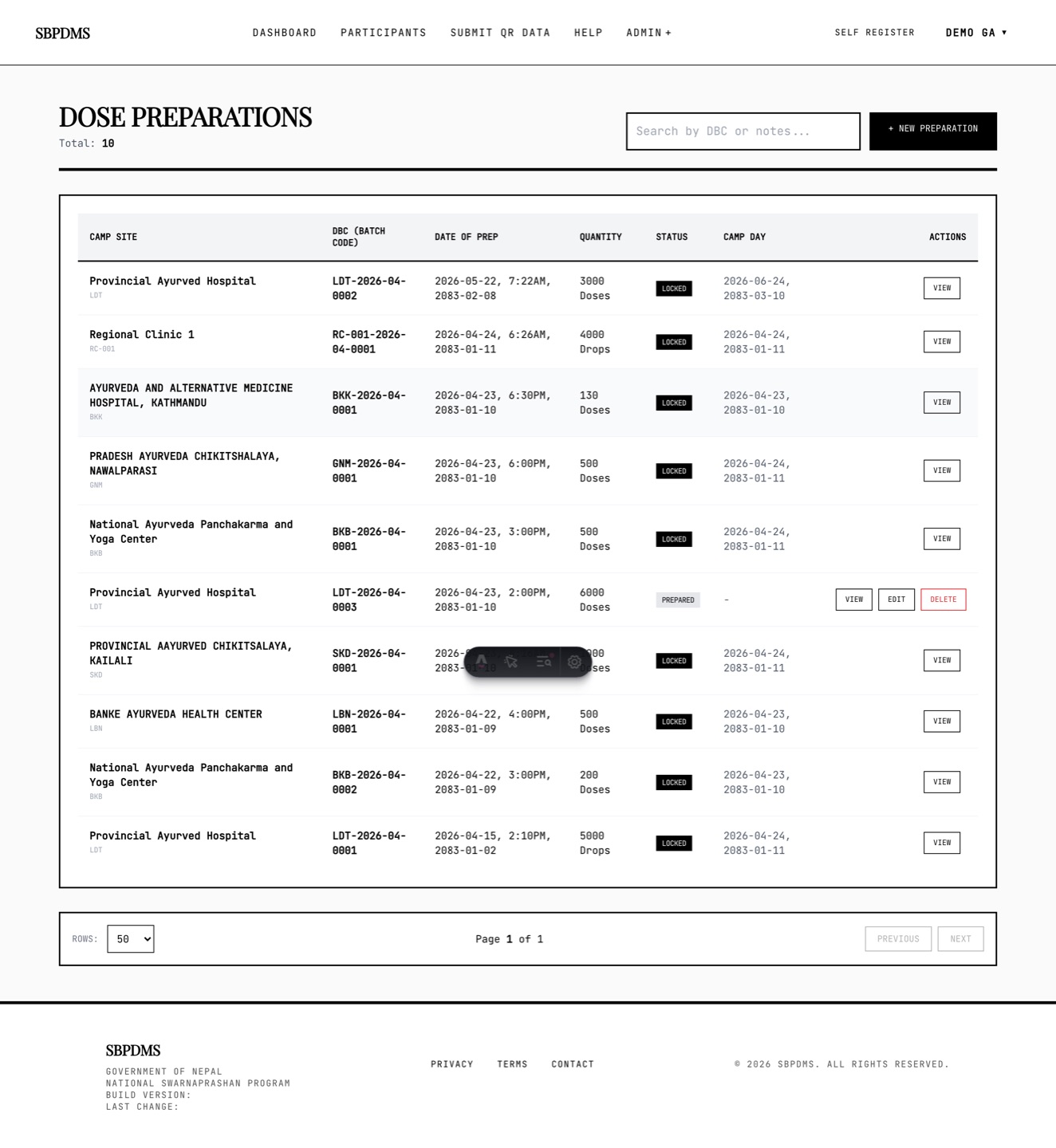 The Dose Preparations list. Camp site, batch code, preparation time, quantity, status and the camp day the batch is locked to.
Open Admin → Dose Preparations. Newest preparation first.
| Column | What it shows |
|---|---|
| Camp Site | Site name with its code underneath. |
| DBC (Batch Code) | The generated batch code. |
| Date of Prep | Preparation date and time. |
| Quantity | Total quantity and unit. |
| Status | Prepared (grey) or Locked (black). An amber Not assigned badge appears when the batch is not attached to any camp day. |
| Camp Day | The date of the camp day the batch is locked to, or a dash. |
| Actions | View always; Edit and Delete only while the batch is not attached to a camp day. |
The Search by DBC or notes… box also matches the site name and code. LocationAdmin and GeneralUser see only batches at their sites.
Creating a batch
Section titled “Creating a batch”- Click + New Preparation.
- Pick the Camp Site. Do this first: the Prepared By list is loaded from the staff assigned to that site. A LocationAdmin with one site has it selected already.
- Check Date & Time of Prep. It defaults to now. Change it if you are recording a batch made earlier.
- Enter Total Quantity and pick its unit.
- Fill the Ingredients Used lines (see below).
- Tick the people under Prepared By.
- Add Additional Notes if there was anything unusual during preparation.
- Tick the yellow certification box. The save button stays disabled until you do.
- Click GENERATE DBC & SAVE. A message shows the new batch code and you return to the list.
The server refuses the save if the site, quantity, unit, at least one ingredient, at least one preparer or the certification tick is missing. It also refuses a preparer who is not assigned to the chosen site.
Ingredient lines
Section titled “Ingredient lines”Each line has Ingredient (from the Ingredients list), Quantity, Unit (from the Units list) and Batch No / MFD Info, where you type the supplier’s batch number and manufacture date as printed on the container. Click + Add Ingredient for another line and the bin icon to remove one. At least one line is required. If an ingredient or unit you need is missing, a SuperAdmin or GeneralAdmin adds it under Reference data.
Personnel
Section titled “Personnel”Prepared By lists staff assigned to the selected site with their designation. Tick everyone who took part. When you lock the batch you will also tick Administered By, the people who will give the drops. Both lists are saved with the batch so the record shows who made it and who used it.
Prepared and Locked
Section titled “Prepared and Locked”| Prepared | Locked | |
|---|---|---|
| Meaning | Recorded, not yet attached to a camp day | Attached to one camp day |
| Editable | Yes | No |
| Deletable | Yes | No |
| On the dosing screen | No | Yes, on that camp day |
A batch is created as Prepared. Nothing in the rest of the system can see it until it is locked.
Locking a batch to a camp day
Section titled “Locking a batch to a camp day”- Open View on the batch.
- Click the lock button. The Confirm Camp Day Usage dialog opens.
- Pick Camp day this batch is for. Only camp days at the same site that are still Scheduled or Ongoing are listed. If none exists you see No open camp day at this camp site. Create the camp day first, then come back and lock this batch. See Camp days.
- Tick the people under Administered By. At least one is required.
- Click CONFIRM & LOCK.
The batch turns Locked, is attached to the camp day, and its Camp Day column shows that day’s start date. The lock is recorded in the audit log.
Who may lock: SuperAdmin, GeneralAdmin, and a LocationAdmin assigned to the batch’s site.
Unlocking
Section titled “Unlocking”Only SuperAdmin and GeneralAdmin can unlock. Unlocking is done from the camp day’s edit page: under Unlock Locked Doses, click UNLOCK next to the batch and confirm. The batch goes back to Prepared, is removed from the camp day, and can be edited, deleted or locked to another camp day. The action is audited.
A LocationAdmin cannot unlock. If a locked batch has a mistake, ask a GeneralAdmin to unlock it, fix it, and lock it again.
Editing a batch
Section titled “Editing a batch”Click Edit on a Prepared batch. The heading reads Edit Preparation with the batch code underneath. You can change the site, time, quantity, ingredients, preparers and notes, then click UPDATE PREPARATION. The batch code does not change even if you change the site.
A locked batch cannot be edited. The edit page shows a red Dose is Locked and Assigned notice naming the camp day, and the save button is hidden.
Deleting a batch
Section titled “Deleting a batch”Click Delete on a Prepared batch and confirm. The batch and its ingredient and personnel lines are removed for good, and the deletion is audited.
A batch attached to a camp day cannot be deleted: This batch is assigned to a camp day and cannot be deleted. Unlock it from the camp day first. A LocationAdmin can only delete batches at their own sites.
What a locked batch enables
Section titled “What a locked batch enables”- Its code appears in the batch dropdown on the Prashan page for that camp day, and is stored on every dose given.
- Its preparation date drives the Recording a dose given earlier date choice: the picker offers the preparation date and the next day only, and refuses a future date.
- It appears in the camp day’s reports and analytics, and in the batch filter there.