Finding the child
This page explains the first screen of the Prashan Day page: how to get the right child in front of you before screening starts. It is for health workers (GeneralUser) and site admins (LocationAdmin). Every way of finding a child ends in the same place, the two-step dose form.
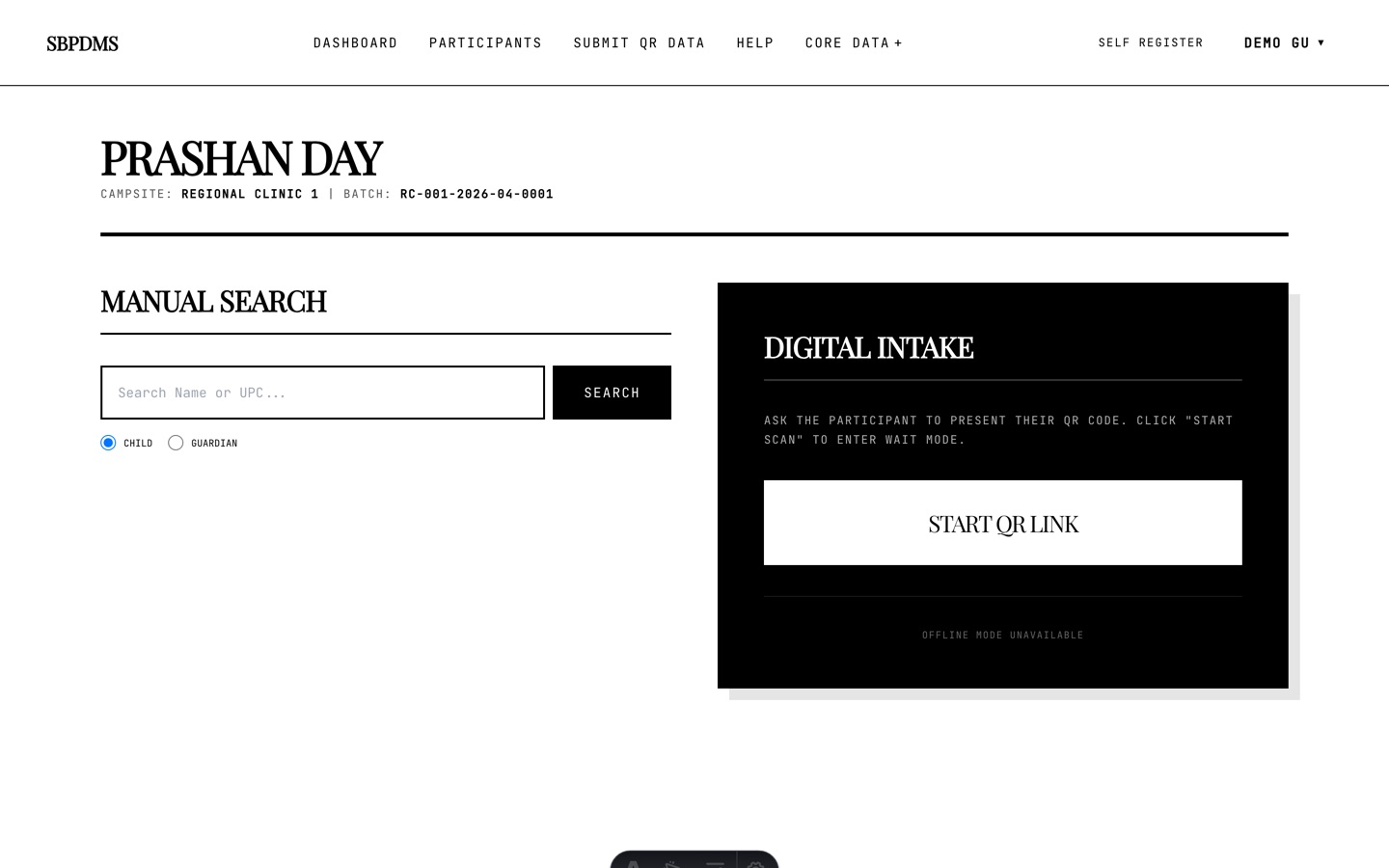 Left: Manual Search. Right: Digital Intake for QR scans. The header shows the camp site and batch codes.
What is on the page
Section titled “What is on the page”- A header with Campsite and Batch for the camp day you opened from the Dashboard.
- An amber banner, only when needed. See the amber banner below.
- Manual Search: a text box, a Search button, and two radio buttons, Child and Guardian.
- Digital Intake: a Start QR Link button.
- A Cancel & Restart button appears in the header once you have picked a child. It drops the current child and brings you back here. The camp day and batch stay as they were.
Search by name or UPC
Section titled “Search by name or UPC”- Leave the radio button on Child.
- Type part of the child’s name, or their UPC (the code on their QR card, like
QUQV-7135). - Press Enter or click Search.
- Click the child’s row.
Each result row shows the UPC, the name, the gender and the registration status. Below that, two small labels:
- Preferred Site: the site the family chose at registration.
- Verified Site: the site where staff verified the registration.
Both should normally be your own site. If they are not, read Children from another site.
Name search only shows children who belong to your site: children dosed at your site before, and children who have never been dosed anywhere (new registrations and walk-ins). This is deliberate. One site cannot browse another site’s register.
Search a guardian, then pick the child
Section titled “Search a guardian, then pick the child”Use this when the parent knows their own name or phone number but not the child’s UPC.
- Select the Guardian radio button.
- Type the guardian’s name, UPC or phone number and click Search. Rows show the guardian’s relation and phone.
- Click the guardian. A Select Child screen lists their children with a Start VF button on each.
- Click the child you are dosing.
If the guardian has exactly one child, that child opens straight away. If the list says No children found for this guardian, the child has not been linked to this guardian yet. Fix that from the child’s profile, or search the child by name instead.
Wait for a QR scan
Section titled “Wait for a QR scan”The parent’s phone does the work here. The QR card carries a link that the parent opens and submits.
- Click Start QR Link. The page switches to Waiting for Scan with a 5-minute countdown bar.
- Ask the parent to scan their QR card and submit the form on their phone.
- As soon as the scan arrives, the child (or the guardian’s child list) opens on your screen.
Click Cancel Wait to stop early. After five minutes the page says QR Scan timed out. and returns to the search screen. Just start again.
Opening from a profile
Section titled “Opening from a profile”On a child’s profile, the Add Follow up button opens the Prashan Day page with that child already selected. The page picks the camp day for you: the site of the child’s most recent dose, else the child’s preferred site, else your own site. Check the Campsite in the header before you continue. The Dashboard card also carries the camp day you selected there.
Registration Not Verified
Section titled “Registration Not Verified”If the child’s status is Self Registered (the parent registered online and no staff member has checked the details yet), a red box appears instead of the form: Registration Not Verified. A child cannot be screened until office staff verify the registration.
- Click Go to Verify Registration to open the verification form for this child. Once verified, come back and find the child again.
- Click Cancel & Return to Intake to go back to search.
Children from another site
Section titled “Children from another site”A child’s home site is their preferred site, or if that is not set, the site where they were verified. Sometimes a family travels and turns up at a different camp. They can still be dosed, but only when you have the exact UPC.
- Type the child’s full UPC, in the form
QUQV-7135, into Manual Search and click Search. Exact UPC is the only search that finds another site’s child. A name search will not. - Click the row. Before the form opens, a modal appears: This child belongs to another camp site. It names the child, their home site, and your site.
- Choose one:
- Continue — dose here: the form opens as normal. An amber strip Registered at another camp site stays at the top of the form with the home site name, so you do not forget while dosing.
- Cancel: back to search. Use this if you may have the wrong child.
Whichever you choose, the choice is logged with your username and both site names. The child keeps their home site and their whole dose history stays in one place. In the camp-day report the child is counted under Dosed here, preferred site elsewhere (see Closing the day).
The amber banner
Section titled “The amber banner”At the top of the page you may see: N children were screened today but not marked as dosed. They are not counted in any report. Review →. These are children for whom Next: Prashan was pressed but Complete Dose never was. The banner refreshes each time you finish a child. Clicking it opens the camp-day report at the Screened but not dosed table. What to do there is explained in Screened but not dosed.
Next: Step 1: Screening.