Logging in and out
This page is for every staff member with an SBDMS account. Parents do not log in; they use the public Self Register form.
What you need
Section titled “What you need”- A browser. Chrome, Edge, Safari or Firefox from the last few years. A computer, tablet or phone all work. There is no app to install.
- An internet connection. The website talks to the server on every click. A short dropout passes unnoticed. If a save fails with a network error, wait a moment and try once more.
- The address. Your office gives you the web address. If an old address stops working, ask before assuming the system is down.
- An account. A username and password issued by the office. There is no sign-up page for staff.
Your browser must allow JavaScript and local storage (both are on by default). If pop-ups are blocked, allow them for the SBDMS address, because the print and download dialogs can count as pop-ups.
First login
Section titled “First login”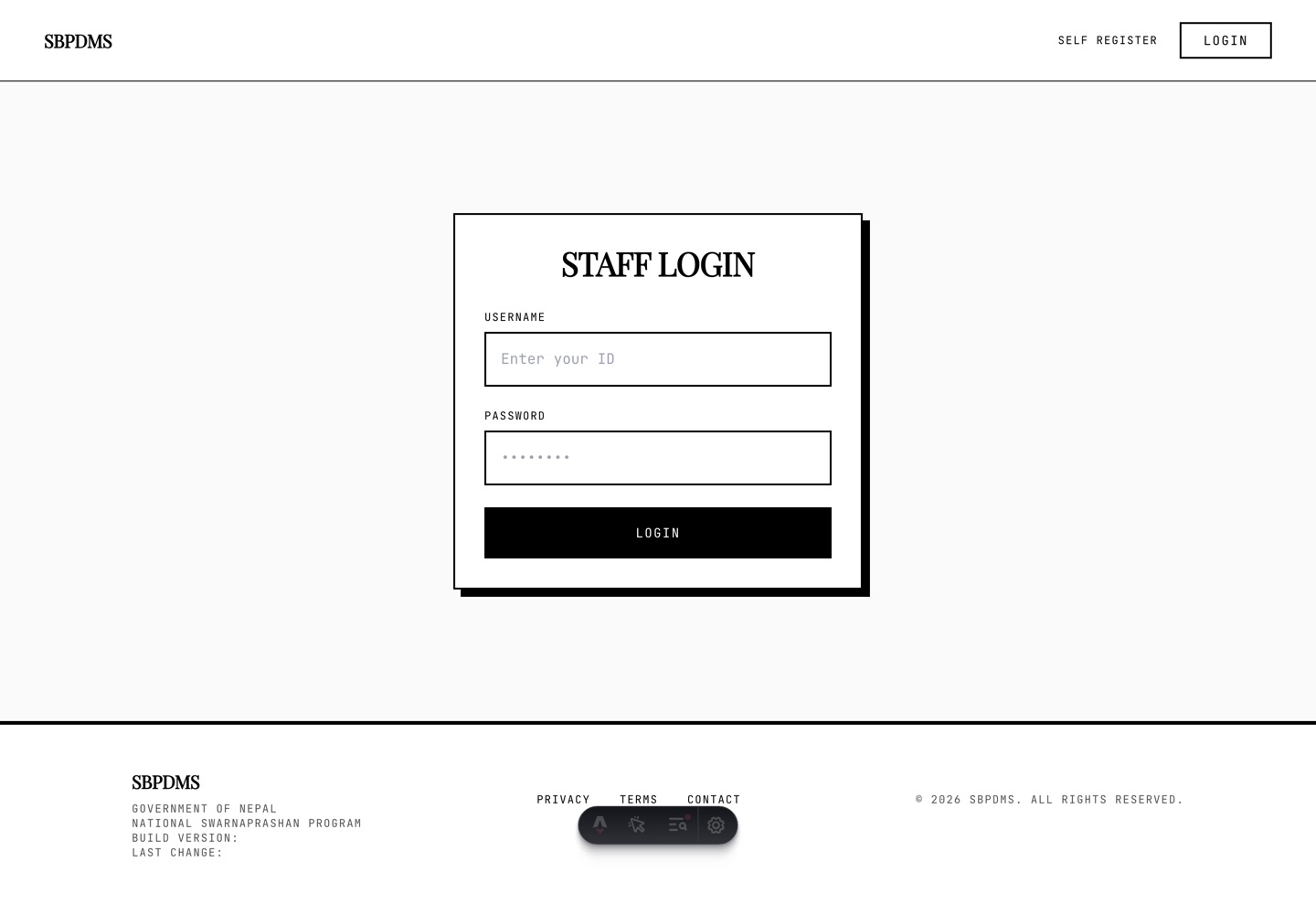 The Staff Login card. Two fields and one button.
- Open the address. You land on the public landing page.
- Click Login at the top right of the header.
- In the Staff Login card, type your Username. Type it exactly as the office gave it; upper and lower case matter.
- Type your Password. The field shows dots as you type. That is normal.
- Click Login, or press Enter. The button reads Logging in… while it waits.
If it works, you land on the Action Board (the dashboard). Your name appears at the top right of the header instead of the Login button.
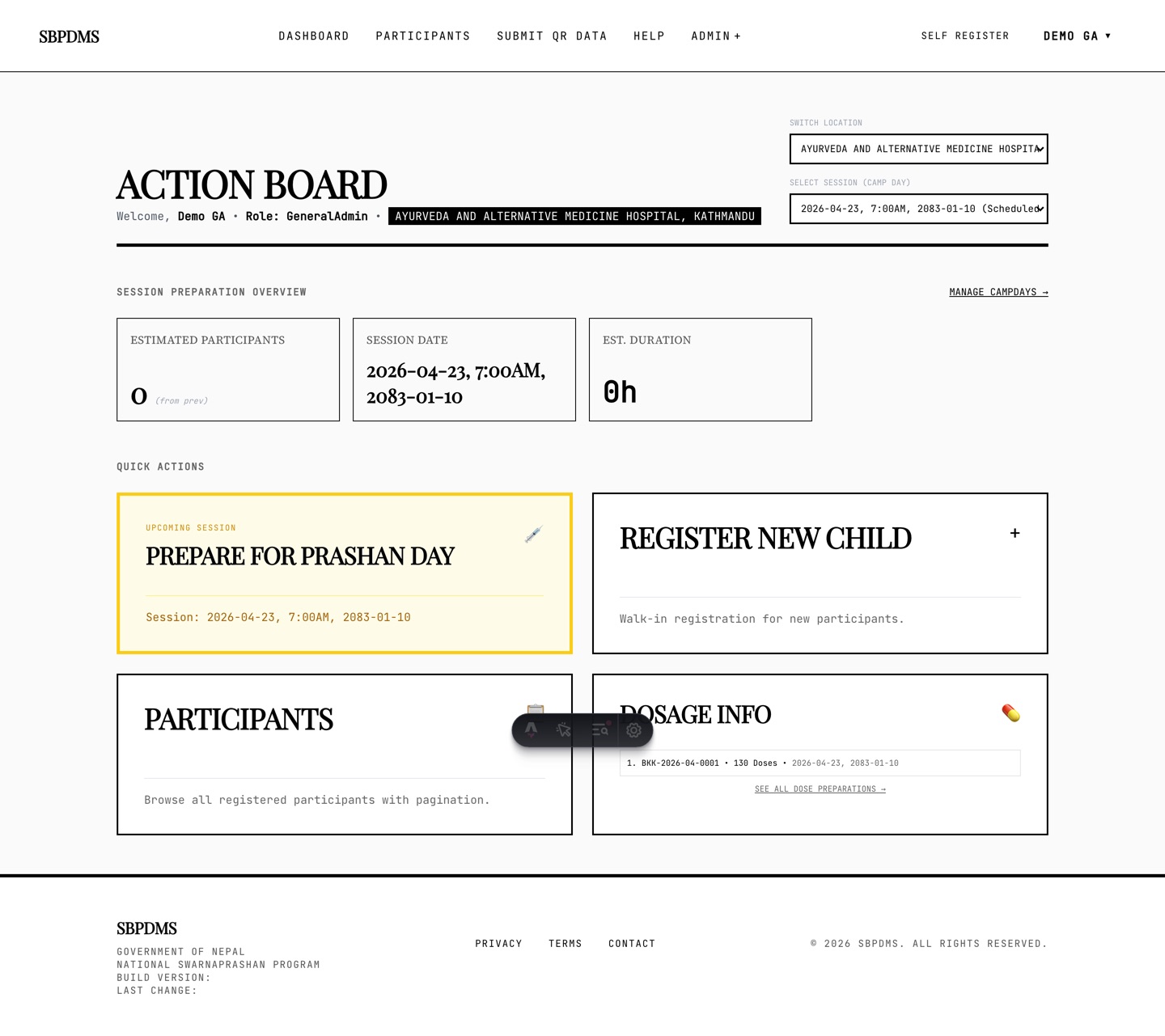 After a successful login. Your name and role show at the top of the Action Board and in the header.
If login fails
Section titled “If login fails”A red box appears above the fields. What it says tells you what went wrong.
| Message | Meaning | What to do |
|---|---|---|
| Username and password are required | One field was left empty. | Fill both fields. |
| Invalid username or password | The pair does not match any account. | Check spelling and case. If the office gave you a temporary password, make sure you have the latest one. |
| Your account has been disabled. Please contact an administrator. | Your record exists but login is switched off. | Ask the office to turn on Enable System Login on your Office Staff record. |
| Cannot reach the backend at … | The server is down or your network cannot reach it. | This is not a password problem. Tell the office. |
Usernames and passwords
Section titled “Usernames and passwords”- Usernames are set by the office when the account is made. You cannot change your own.
- Passwords are also set by the office. The system does not enforce a minimum length or special characters, so follow your office’s rules for a strong password.
- Do not share your password. Everything you do in SBDMS is recorded against your username in the audit log.
- On a shared front-desk computer, say No when the browser offers to save your password. The next person at the keyboard would otherwise act as you.
Forgotten password
Section titled “Forgotten password”There is no “forgot password” link and no self-service password change. The office resets it for you:
- Ask your site admin or the office.
- They open Admin → Office Staff, find your row, click Edit, and type a new password. They do not need to know the old one.
- They click Save.
- You sign in with the new password.
Only SuperAdmin and GeneralAdmin can reset any account. A LocationAdmin can reset GeneralUser accounts at their own site.
How long you stay signed in
Section titled “How long you stay signed in”Your login is saved in the browser. It survives closing the tab or restarting the computer. On the current production settings it lasts about 30 days unless you log out.
When it does run out, the next thing you click sends you back to the Staff Login page without a warning. Sign in again and carry on. Nothing you had already saved is lost.
Logging out
Section titled “Logging out”- Click your name at the top right of the header. A menu opens showing your
@username, your role and, for site-scoped roles, your Assigned Locations. - Click Logout.
You are taken to the login page. The header shows Login again.
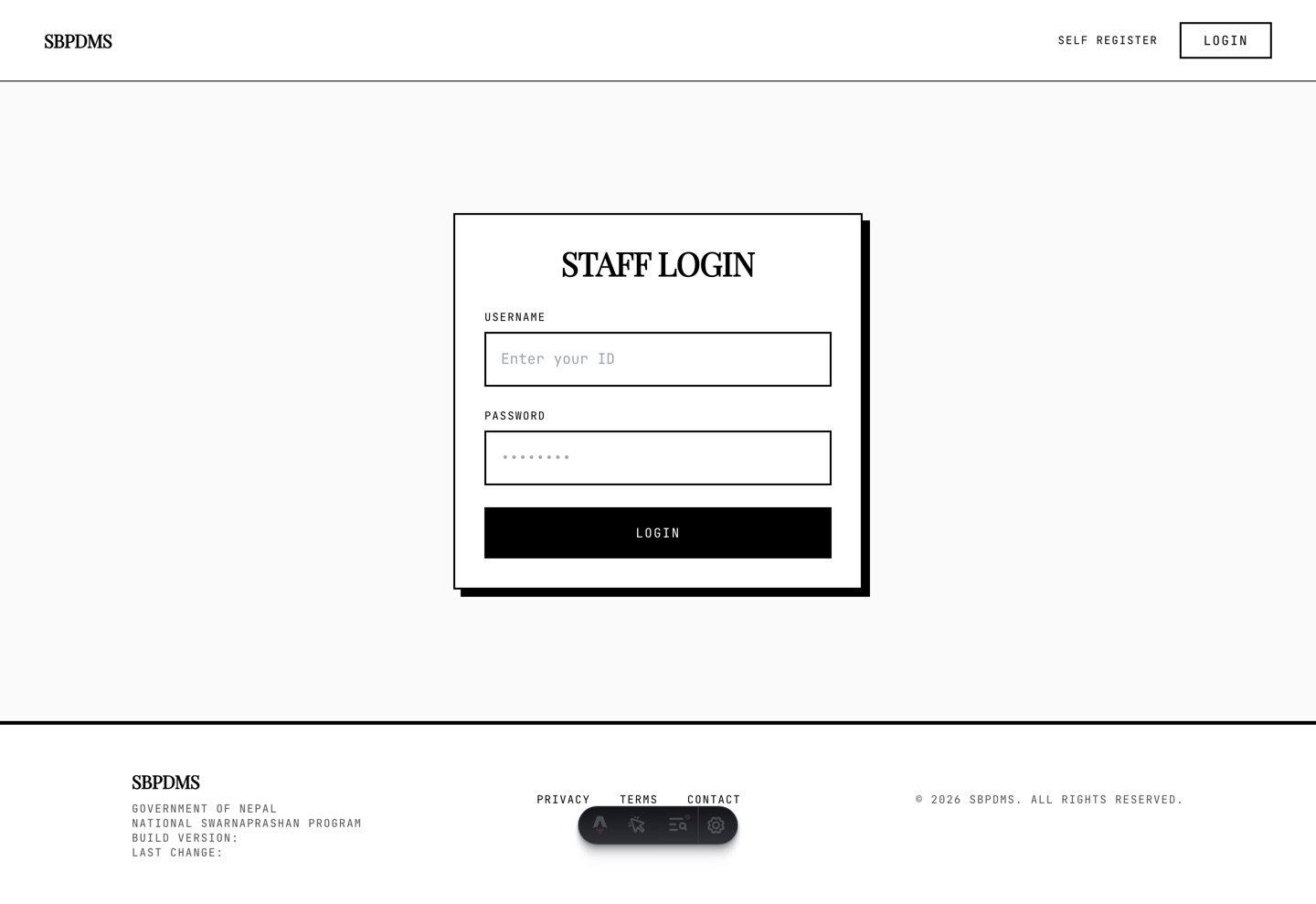 After logout. The user menu is gone and the header shows the Login button.
On a phone, open the menu with the three-line button at the top right; the black Logout button is at the bottom of the menu.
Several tabs at once
Section titled “Several tabs at once”You can open SBDMS in more than one tab of the same browser. All tabs share the same login. Useful pairs:
- The Prashan page in one tab, the participants list in another.
- A child’s profile next to a guardian’s profile.
- Camp Days next to Dose Preparations while setting up a day.
Logging out in one tab logs out all of them on their next page load.
You cannot be two different users in the same browser at the same time. To compare what two roles see, use two different browsers, or one normal window and one private (incognito) window.
Opening a page you are not allowed to see
Section titled “Opening a page you are not allowed to see”If you type an address for a staff page while signed out, you are sent straight to the login page. If you are signed in but your role cannot use that page, you are sent to the dashboard. See Roles and what each can see.