Which report to use
This page helps you pick the right report before you start clicking. It is for LocationAdmins, GeneralAdmins and SuperAdmins. Health workers (GeneralUser) can open the camp day report for their own sites, but not the Admin → Reports page.
Start with your question
Section titled “Start with your question”| Your question | Open this | Who can open it |
|---|---|---|
| How did one camp day go? Dosed, excluded, ages, batches, adverse events | Camp day report via Admin → Camp Days → Reports | All staff roles, own sites only for LocationAdmin and GeneralUser |
| Which children were screened but never marked as dosed? | The Screened, not dosed table on the camp day report | Same as above |
| I need the official per-child register (form Anusuchi-2) | Anusuchi-2 | SuperAdmin, GeneralAdmin, LocationAdmin (own sites) |
| I need the monthly summary for the ministry (form Anusuchi-3) | Anusuchi-3 | SuperAdmin, GeneralAdmin, LocationAdmin (own sites) |
| Who registered and who verified each child, and when? | Registrations and verifications report | SuperAdmin, GeneralAdmin |
| Which children were dosed here although their home site is elsewhere? | Export audit list on the camp day report, see Data exports | SuperAdmin, GeneralAdmin |
| I want a spreadsheet of children with the columns I choose | Advanced Export, see Data exports | SuperAdmin |
| I want a raw dump of children, dose sessions or audit rows | The export addresses in Data exports (no page in the app) | Staff roles; audit rows SuperAdmin and GeneralAdmin only |
| Who changed this record, and what did it look like before? | The audit log | SuperAdmin, GeneralAdmin |
The Reports landing page
Section titled “The Reports landing page”Open Admin → Reports from the top menu. The Reports link is the last item in the Admin drop-down and only shows for SuperAdmin, GeneralAdmin and LocationAdmin. A GeneralUser who types the address sees Access Restricted.
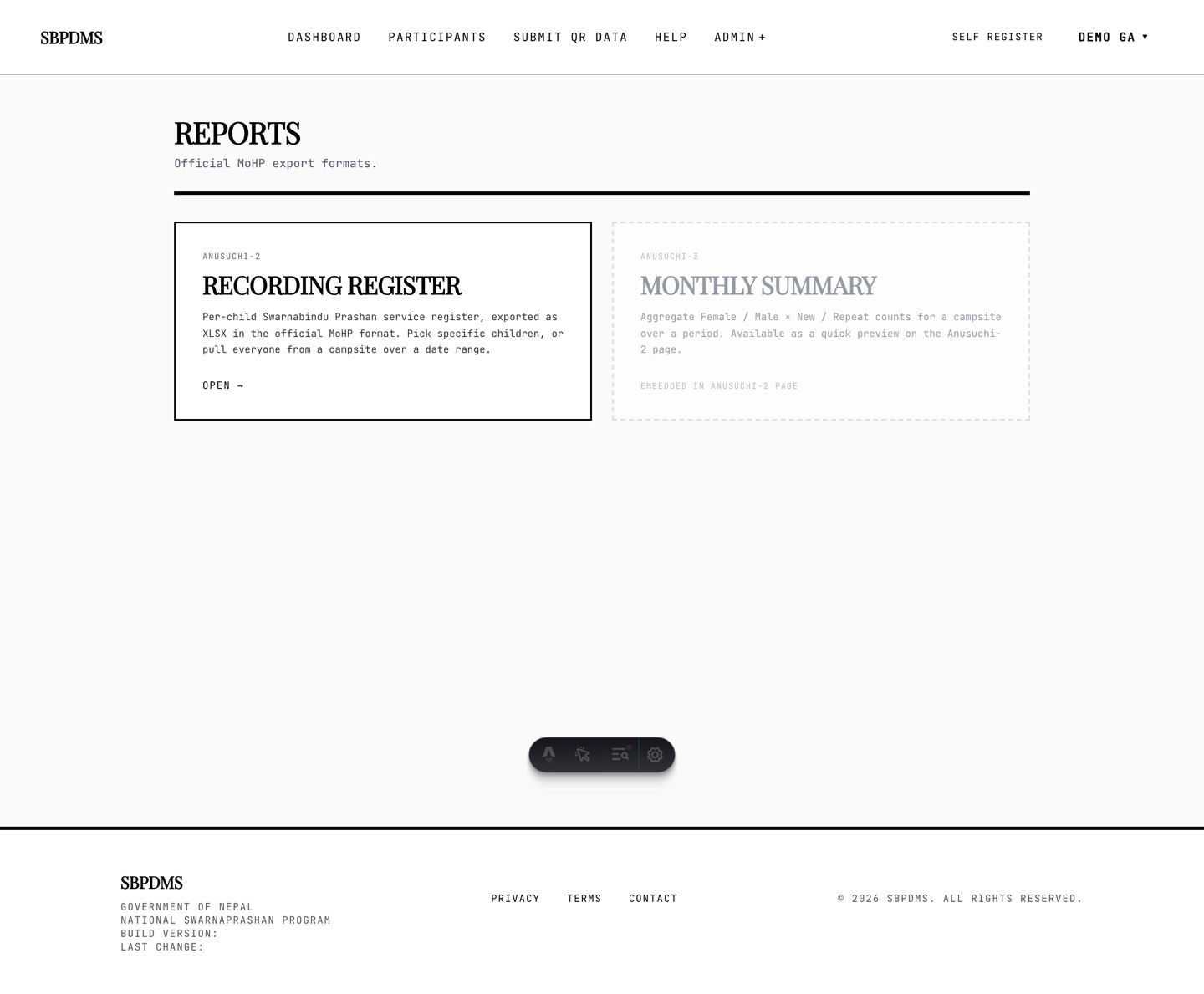 An older screenshot of the Reports page. Today the Monthly Summary card opens its own page, and admins see two more cards.
The page shows up to four cards. You see only the ones your role allows.
| Card | What it makes | Roles |
|---|---|---|
| Anusuchi-2 — Recording Register | Per-child register, XLSX or PDF | SuperAdmin, GeneralAdmin, LocationAdmin |
| Anusuchi-3 — Monthly Summary | Female / Male / Other by New / Repeat and age group, PDF or XLSX | SuperAdmin, GeneralAdmin, LocationAdmin |
| Registrations & Verifications | Who registered and verified each child, CSV, Excel or PDF | SuperAdmin, GeneralAdmin |
| Advanced Export | Children with your own choice of columns, Excel or PDF | SuperAdmin |
Click Open → on a card. Every report page has a ← Reports link at the top to come back here.
Site scoping
Section titled “Site scoping”A LocationAdmin (site admin) only ever sees their own camp sites. This is enforced in two places:
- The pages hide other sites from every Campsite drop-down.
- The server checks again. If a request names a site that is not yours, it is refused even if the address was typed by hand.
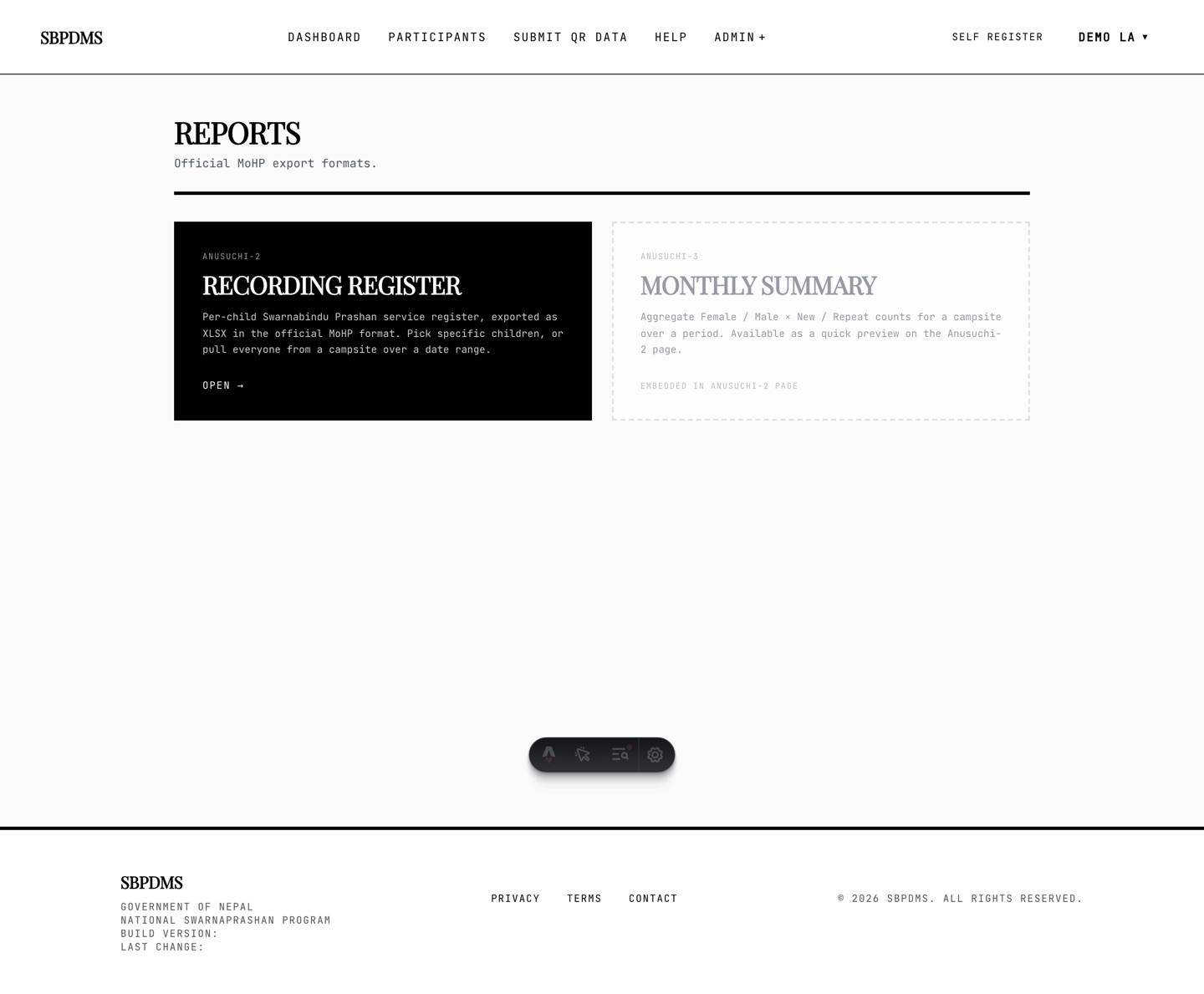 The same page for a LocationAdmin. The cards look the same, but every site list inside them is limited to the admin’s own sites.
For the raw exports, a scoped user also only receives children who have at least one dose session at one of their sites. A child who self-registered and has never visited one of your sites is not in your export.
Caps and date-range limits
Section titled “Caps and date-range limits”Every report refuses to build a file that is too large, and tells you to narrow the range instead. The limits are:
| Report or export | Cap | Date range |
|---|---|---|
| Anusuchi-2 | 10,000 children per file | Mode B: at most 5 years between From and To |
| Anusuchi-3 | No child cap | At most 5 years between From and To |
| Registrations and verifications | 20,000 registrations | Any range, or all time |
| Advanced Export | 20,000 children | Any range |
| Children, sessions and audit exports | 50,000 rows | Any range, both dates optional |
| Non-preferred-site audit list | One camp day | Not applicable |
When you hit a cap the page shows a red message such as Filter matched 12,340 children — narrow the date range (cap is 10000). Split the period into smaller pieces and export each one.
Dates in reports
Section titled “Dates in reports”Report filters take dates in AD (the Gregorian calendar) using the browser’s date picker. The printed Anusuchi forms carry the date in both BS (Bikram Sambat) and AD in the header. All times in the registrations report are Nepal time. The camp day report shows dates as AD followed by BS.